Tasks / Screen Overview
Tasks that have been assigned to you will display here. You can create new tasks, filter tasks, sort tasks, view information about the task and complete tasks.

 Create Tasks.
 Filter Tasks.
 Sort Tasks.
 Refresh tasks.
 click to complete the task.
Viewing Task Detail
- Select a task and flyout information will display on the right.
To Create a Task:
Note
You must have permission to create tasks. Refer to system permissions for further information.
- Click
-
Choose the relevant task type that you wish to create. The list of task types displayed will depend on your permissions. The task types are:
- Budget Approval Required - Complete. Create a task for a user to approve their budget.
- Budget Tasks. Create any task that would be related to a budget.
- Check Alerts. Run the chosen alerts and send a notification to the selected users for each alert that returns 1 or more rows.
- Clear Debug logs. Clear any debug logs. This task can be repeated or set to re-occur.
- Clear SQL Logs. This task can be repeated or set to re-occur.
- Clear System Logs. This task can be repeated or set to re-occur.
- Common Tasks.
- Create Budget Restore Point. This task can be repeated or set to re-occur.
- Delete Budget Restore Point greater than 30 days old. This task can be repeated or set to re-occur.
- Publish Financial Plan. Publish the selected Financial Plan and notify the selected users when complete.
-
Fill out relevant details such as who to assign the task to, title of the task, a task instruction and select a due date and time. If a system task, choose who the notification should be sent to and whether an email notification should be sent. If a budget task, you will need to choose which budget and cost centre it is relating too.
-
Click Send.
Filtering Tasks
-
Click
-
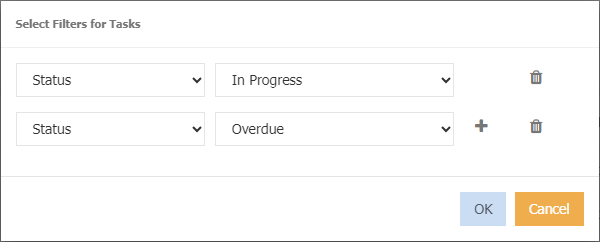
Choose what to filter on:
- Assigned By - Who the task was assigned by.
- Assigned To - Who the task was assigned to.
- Is Budget - Is the task a budget task or not.
- Status - Is the task In Progress, overdue or completed.
- Title - Sort by a title of a task.
To Remove a Filter
- Click

To Add a Filter
- Click
Sorting Tasks
- Click
- Choose from either creation date, due date, completed date or title
- Once chosen, the sort option will display, for example
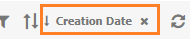
To Sort in Ascending or Descending Order
- Click
 next to the sorted column name.
To Remove the Sort
- Click
 next to the sorted column name.
Completing Tasks
- Click

- Click ok on the message box of 'Are you sure you want to complete this task'.