Introduction to Scheduler
Scheduler is used to automate the emailing of reports and alerts.
Whilst pre-saved reports cannot be directly altered when received via email, some of the filters that apply to them can be manipulated.
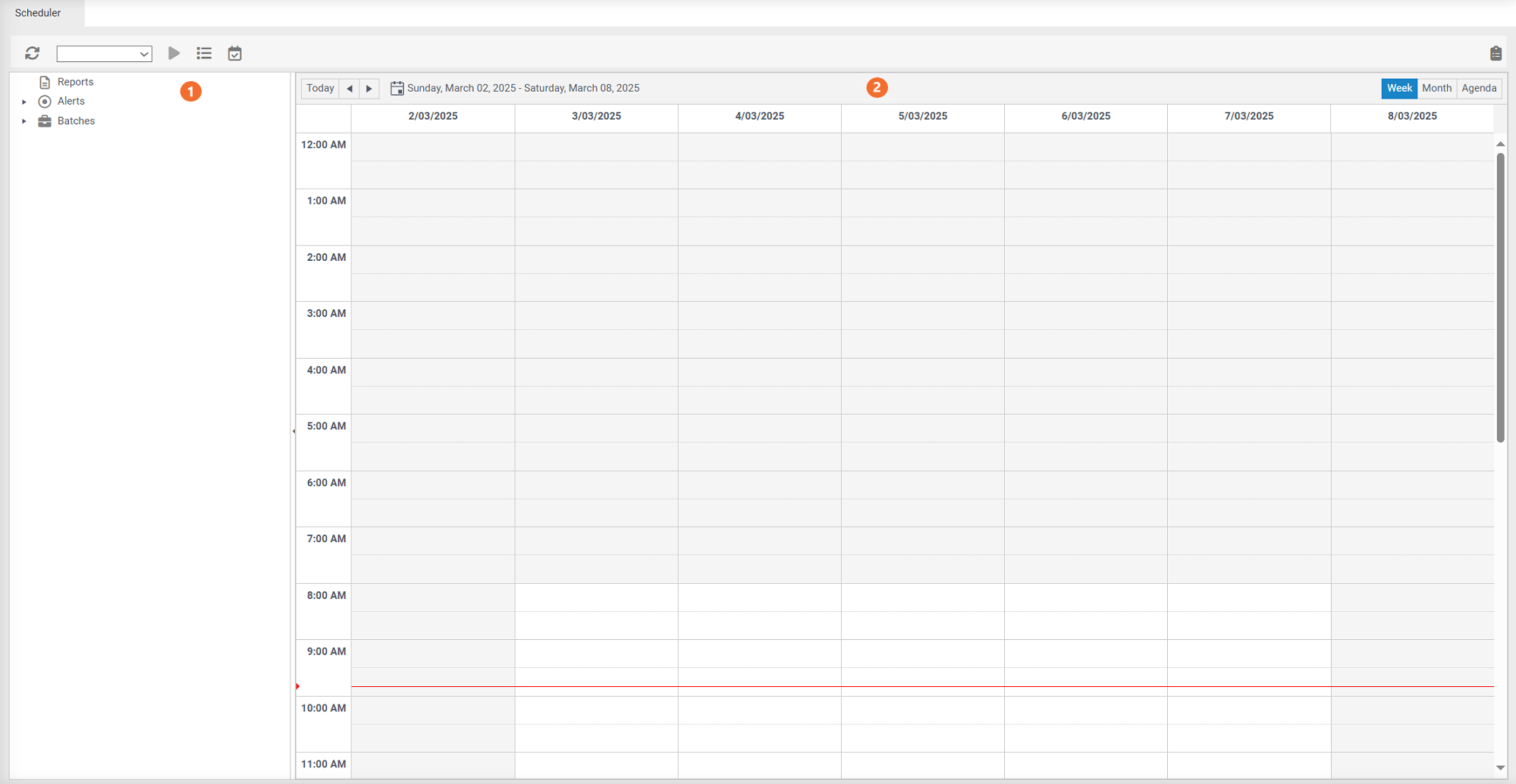
 refresh to collapse the folders that you have expanded.
 choose which dataset you wish to schedule.
 run the scheduled task now.
 Task Log - details when reports have been sent out.
 View Daily Tasks - details what reports will be run today.
 Reporting Panel
Reports
These folders contain reports that have been saved through Excel.
- Shared with Everyone,
- Shared with My Group and
- Not Shared.
To populate these folders with previously saved reports:
- Select a dataset from the drop-down menu.
- Choosing a dataset will populate the folders with reports saved to these, as well as any tasks already set up will become visible in the Calendar window.
Alerts
Based on the dataset selected will display the relevant alerts.
Batches
Ability to add reports into batches for running in "bulk".
 Calendar Window

 Today/Arrows/Date
Arrows are used to navigate through different days or to skip back and forth between weeks and months of the Calendar easily, depending on what view you are currently in  .
.
If you have navigated for a while, you can quickly return to the week or month that contains your current day by clicking Today.
You can click on the date next to these buttons, which will drop down a calendar. This is an easy way to navigate to a selected date.
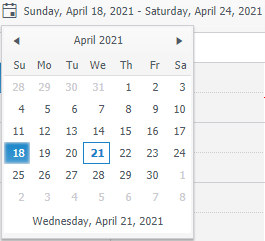
The Blue border around a date indicates the current day, while the filled in blue box is the day you have selected. This will populate either the week, or month depending on what view you have it on.
Week/Month/Agenda
Indicates what view the Calendar is going to be in.
Week and Month - Displays either a full week or month view.
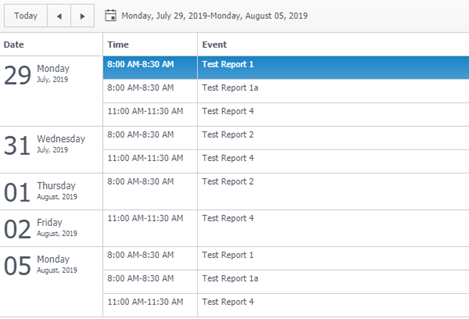
Agenda - will change the view from a calendar to details about reports that are to be sent for the week following the date you select.