How to create a report
Requirement an excel report must have already been created.
An example: As a manager I am wanting to generate an Annual Report and display the income and the expenditure for an account. I want the income and expenditure to be separated.
To Create a Report
Part 1: lets start with the income report.
-
Click and drag the relevant report and drop it into the word document.
You will notice that the report creates a bookmark

The bookmark appears in the bookmark section of the publiser tab.

-
Update the bookmark name and call it income This easily identifies which report is which especially if you have multiple reports in your document.
To update the bookmark name
- Double click on Income Statement
- Change the name to Income
-
Hit Enter

-
Apply a filter so Income is displayed for this report
To apply a filter
- Double click to expand Account Type
-
Single click Income
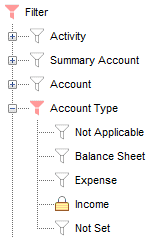
-
Apply a time series (optional) In this example, a time series is not required, as that information is being pull from the excel report.
-
Save the report, you do not want to lose all the work you have done.
To save a report
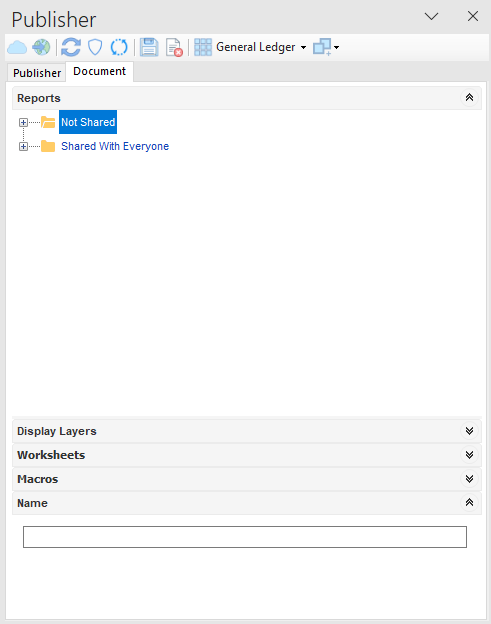
- Click the 'Document' Tab.
-
Choose 'Shared with Everyone' if you want anyone to view your report.
Or 'Not Shared' which means only you can see the report. -
Enter a name for your report (excluding the document extension eg .docx), for example Annual income and Expenditure Report
-
Click

Part 2 Create the expenditure report.
- Repeat the above steps.
- This will create a second bookmark.
- Update the bookmark name and call it Expenditure.
- Apply a filter of expense.
- Save the report .
Part 3 Publish
Once you are happy with the layout of your report, its time to publish it.
Publishing the report will produce the bookmarks as images. These reports are the ones you have created in Excel Designer and will pull the data based on the filters you have selected.
- Click
