Navigation Tree / Reports
Location of all reports that you have access to.
Reports are separated into the three different folders;
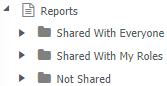
When reports are saved you determine which folder they will reside.
Sub folders can be created. This is useful if you want to split between the different type of reports, or want to group them.
Create folders:
- Right click on either Shared With Everyone, Shared With My Roles or Not Shared
- Select Reporting > Add folder
- Enter the name of the folder
- Click Save
Rename folders:
- Right click on the folder you wish to rename
- Select Reporting > Edit folder
- Change the name
- Click Save
Remove/Delete folders:
- Right click on the folder you wish to delete
- Select Reporting > Delete folder
- Click OK to confirm deletion
Moving Reports
Reports can only be moved within the report group, for example, Shared with My Roles.
To move a report
- Click and drag the report into the relevant folder.
To retrieve saved reports:
- Expand Reports.
The tree displays the saved screen types available. - Expand or double click the folder name
- Double click on the relevant report.
Alternatively,
- Open the report from the reports function
To remove a report:
- Right click on the report you wish to delete
- Select Reporting > Delete
- This will immediately remove your report from the dataset.
To edit a report
Only applicable for saved screens:
- Right click on the report you wish to edit.
- Select Reporting > Edit
Favourite Reports
Just like making the function tab a favourite, you can have a favourite report.
- Open a report from the Reports function
- Hover your mouse over the tab
- Click

- Click
 add to favourites.