Navigation Tree / Filters
Filter data presented in the Data Browser and Chart window, allowing you to shape and focus your data to determine specific performance across the organisation (or parts of the organisation).
Refer to global settings for customising the filter colourings. The defaults are:
 indicates a filter is selected/applied.
 indicates a filter has been excluded.
 displays on the parent level to indicate a combination of included and excluded filters.
To apply a filter
- Click the filter name to apply a
To remove a filter
- Click the filter name where a appears.
- Alternatively, right click and choose Filters > Clear
To apply multiple filters
Display only information for that entity/cost centre
- Select a filter level, then apply a Zoom To
To exclude a filter
Excluding filters is ideal if you want all options to display except for one or two areas.
- Right-clicking on the Filter
- Select Filter > Exclude.
To clear a filter
If you have selected and deselected multiple filters and need to clear them all.
- Right-click on the filter
- Select Filter > Clear
Filter Locks
To identify the filters that have been applied, enable Filter Locks. Which will display at the bottom of your Navigation Tree.
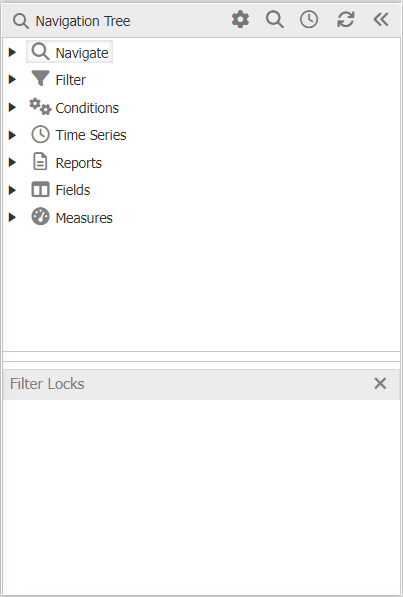
This saves you from having to expand each section to find out what filters are active.
To Enable the filters lock
- Right-click in the navaigtation pane,
-
Select configure.
At the bottom of the pop-up window is a tick box option
-
Select Show Locks Window. Here you can toggle on and off the Filter Locks window.
With filter locks, it may be hard to identify exactly the lock you have selected. Hovering your mouse over the selection will display the full drill path. For example
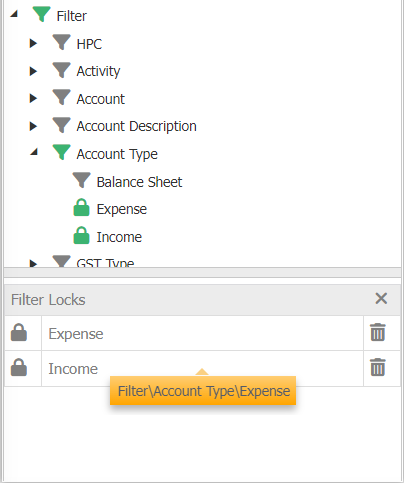
To Remove filter locks
- Within the filter lock pane, click
 next to the filter.