Fields
Fields are configured as part of the dataset.
Fields become columns in the data browser which can be added, removed, repositioned or the appearance and tolerances can be set such as red for "in debt".
Add fields
There two ways that fields can be added to the data browser window:
1. Navigation Tree
- Select the relevant field and drag n drop into your data browser window.
2. Right click in data browser window
- Within the data browser window, right click function.
- Choose Fields > Add.
- Within the fields pop up displayed, select either single or multiple fields and drag n drop.
- Fields that are already display will display in grey text.
Note
Fields on the budget entry screen are set/defined and therefore cannot be added/removed.
Remove Fields
- Click the column heading.
- Hit delete on the keyboard.
Alternatively,
- Right click on the column heading.
- Choose Fields > Remove.
Format
Format relates to the presentation of the column, such as colouring, font styles, setting tolerance values and tolerance icons.
- Right click on the relevant column.
- Select Fields > Format.
The pop-up displays which column is being formatted by the column name being in a blue bubble at the top of the pop-up, for example 2021/22 YTD Variance July.
Appearance
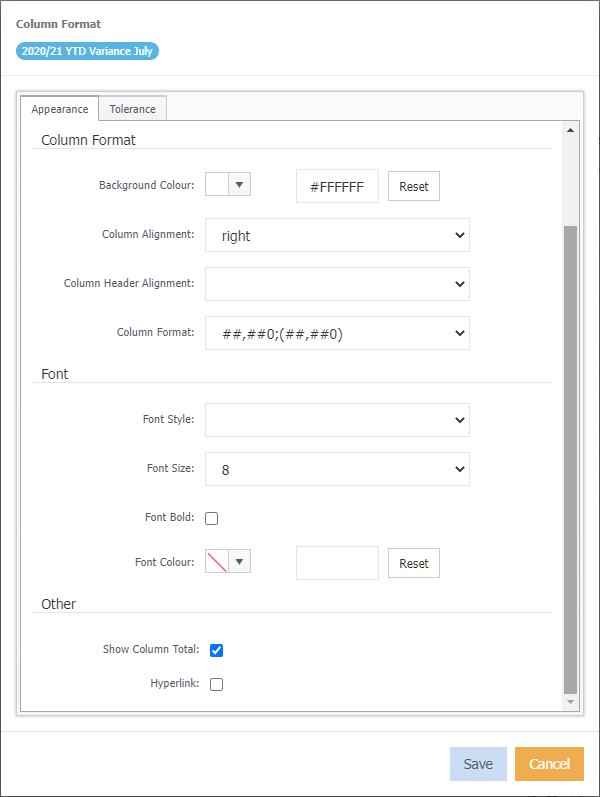
Column Format
Background Colour - fills the column with the chosen colour.
Column Alignment - left, right and center data alignment. If this is blank for a text column, for example Description, the column will be left aligned.
Column Header Alignment - left, right and center the columns header. If this is blank it will align according to the Column Alignment.
Column Format - to have formats such as the dollar sign $ and negative data in brackets.
Font - Controls font type, style, size, effect etc.
Other
Show Column Total - Visible in crosstab reporting, each data field can be displayed with a total column.
Hyperlink - Visible in the transaction widget. A link is visible in the attachment column to open a document, for example and invoice.
Tolerance
Highlight trigger points in the data such as favourable or unfavourable budget variances. The colour can be applied to the text, background or icon, of which there are a variety of them, in the data cell.
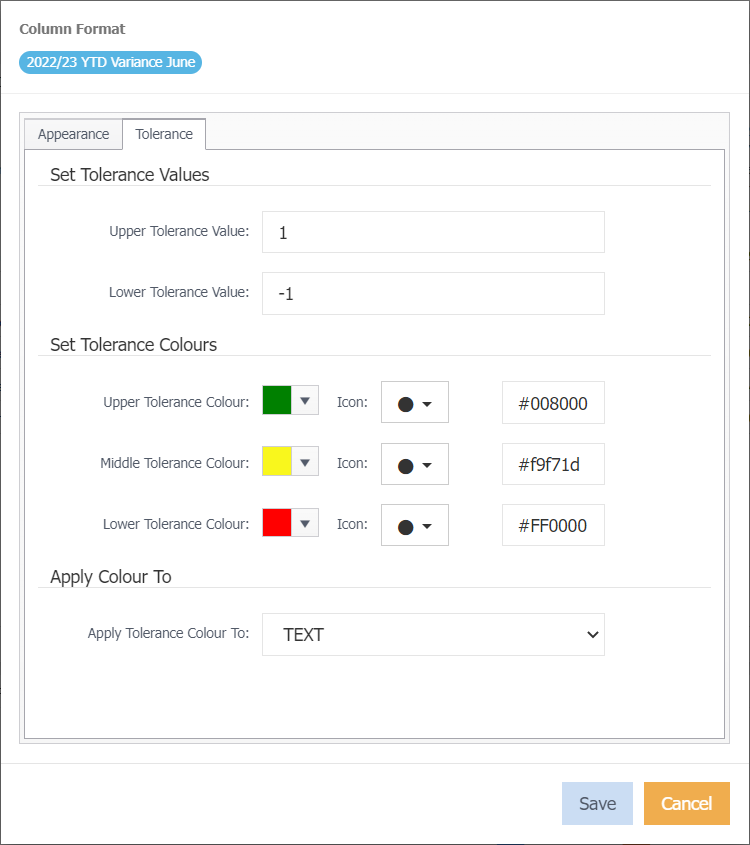
Set Tolerance Values - Specify the upper and lower tolerance range.
Set Tolerance Colours - Specify the tolerance colours and icons to be used for the upper, middle and lower tolerance values.
Apply Colour To - Select how to display the tolerance colours for Text, background or icon.
Create New
You must have the Create Fields system permission to display this option.
Ability to create a new field without having access to the control centre.
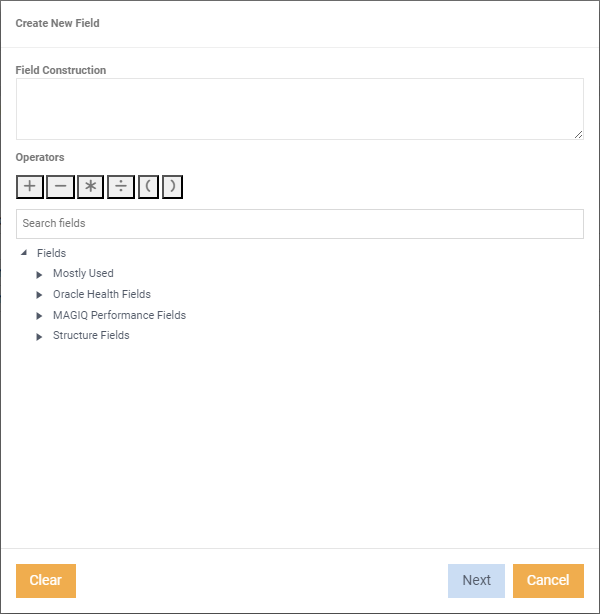
- Build your field construction, or select an existing field and make a change.
- Click Next.
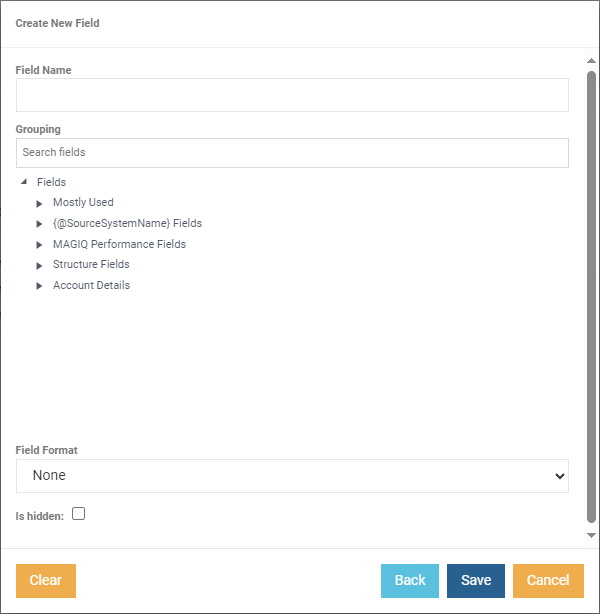
- Field Name - Enter a name for the field.
- Grouping - Select which group you want the field to display in.
- Field Format - Choose which format the field values will display as.
- Click Save.
The field will now display in the data browser and be available in the list of fields to add/remove.