Navigation Tree / Configure
Configure how the navigation tree displays information such as tolerances, whether you want to have the navigation tree functions automatically expanded etc.
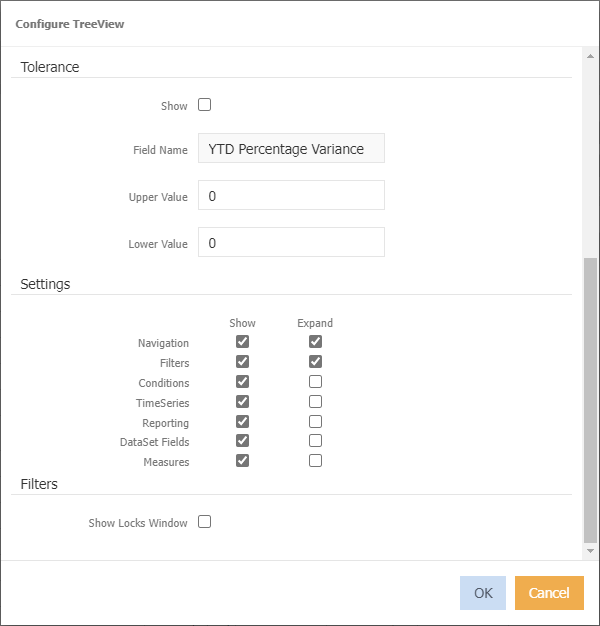
Tolerance
The Navigation Tree structure can be configured to display varying coloured folders responding to a variance or tolerance set by your System Administrator.
For example, the System Administrator has set the tolerance display based on the organisations 2021/22 Year-To-Date Budget figures for the month of July.
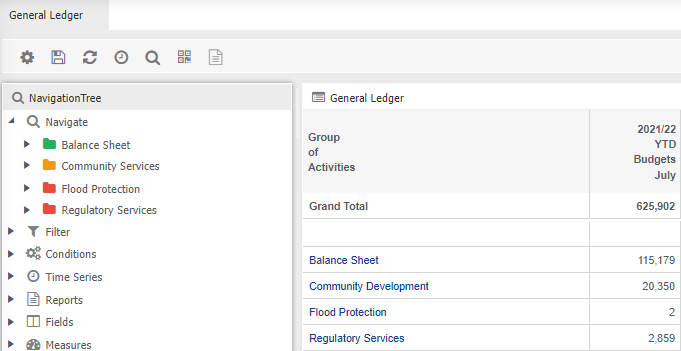
 Greater than or equal to upper tolerance.
 Less than or equal to lower tolerance.
 Within the upper and lower tolerance.
To set the tolerance
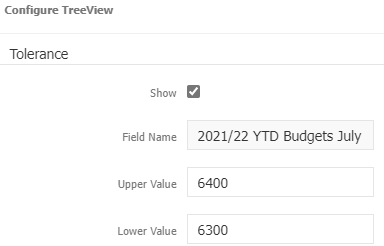
- Tick Show
- Click into the field name field, or as per the screen capture above, click on 2021/22 YTD Budgets July
- Select a field from the field popup
- Enter a upper value.
- Enter a lower value
- Click OK to change the tree structure.
Settings
Show - Select which navigation tree functions are visible. Untick to hide, for example, untick DataSet Fields as you have them in the right click function in the data browser window.
Expand - which functions you wish to expanded to the first layer on loading.
Filters
Show Filter Locks Displays the filters that have been applied. This saves you from having to expand each section to find out what filters are active.
Hovering your mouse over the selection will display the full drill path, for example:
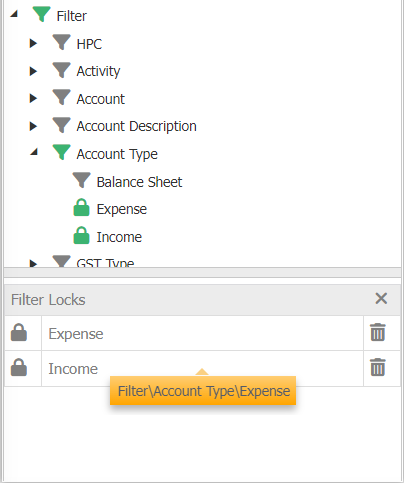
Refer to Show Filter Locks