Labour Budget / Data Entry
Note
Not every labour budget is configured the same, however, the principals of the labour are the same throughout.

Edit Mode Icons
 Save the budget.
 Restore the budget entry to the original saved state.
 Refresh the budget entry.

 Export to excel
Data Entry Icons
 indicates a Formula exists. Hover over the icon to see the formula being used.
 indicates an expanable list with further items that make up the value.
Right click menu option
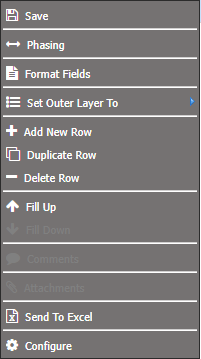
For an explanation of each menu option, refer to Budget right mouse click menu options.
The below menu options will not show for budgets as labour budgeting provides for a little more flexibility.
Add New Row add a new row to the budget.
Duplicate Row save time on entering data and copy/duplicate and existing row and change the data.
Delete Row delete an unwanted row from the budget.
Data Entry screen explanation
- Navigate to the level that you wish to budget (same level as what you would see in the “Normal” Budget.)
Using the above screen capture as the example, the types of columns that you might have in your labour budget are:
Employee Number, Employee Name and Commentary could be your starting point by an initialization step that has been setup pulling data from your payroll system.
If the position column does not exist, the commentary column can be used for the position.
Classification code – list of codes retrieved from the payroll data.
Base Fortnightly Salary Annual Salary is at the start of the budget. (increase is applied to base annual salary)
Annual Salary the employees Annual Salary amount.
FTE - applied to 'annual salary'. If person had 0.5 entered, that would halve the calculations that would flow onto the budget.
Start period – end period the Financial year periods, (not calendar year periods) for that employee. Impacts the months written that have calculations for that employee.
For example, an employee does not start until period 3 (September), then it will not write any results for July and August.
Increase period - the period in which increase applies from.
Oncost percentages – percentages to work out the oncosts.
Click to expand the list.
Examples of items that you might have are:
- Annual Leave weeks – how many annual leave weeks.
- Long Service Leave Percentage.
- Annual Leave Percentage.
- Superannuation Percentage. 10% of the basic pay is written back to the superannuation account.
- Work cover levy percentage.
- OT Rostered percentage.
- OT unrostered percentage.
- Sick leave percentage.
- Allowances.
The amounts entered impact on those "other accounts". For example, the superannuation percentage would be written back to the superannuation account.
Other fields that you might have in your budget are:
- Hourly Rate, influenced by the classification code.
- Hourly rate and hours are used to calculate the base annual salary.
- Percentage Allocation – Used if employees are split across different areas. The percentage of that persons costs that is attributed to a particular area.
- Increase Other – a commnent about the increase.
- Increase Other Percentage – 1.00 is not 100%, its 1% of the increase.
- GL Accounts - Click to see which accounts the oncost figures are being written to.
How to enter data
- Navigate to the level that you wish to budget.
- When entering data into a cell, press <enter> for the change to be recognised.
- Once changes are made,
- Click . Values are written into the "normal"/GL budget.
To add a new row
Right mouse click – add new row. Some information will be pre populated with default values, ie oncost percentages and GL accounts.