MAGIQ Performance Overview
The function tab displayed represents a summarised level in the organisation assigned by the System Administrator according to your security requirements.
The screenshot below demonstrates an example of a start-up screen showing windows that build up the multi-aspect view of your dataset.
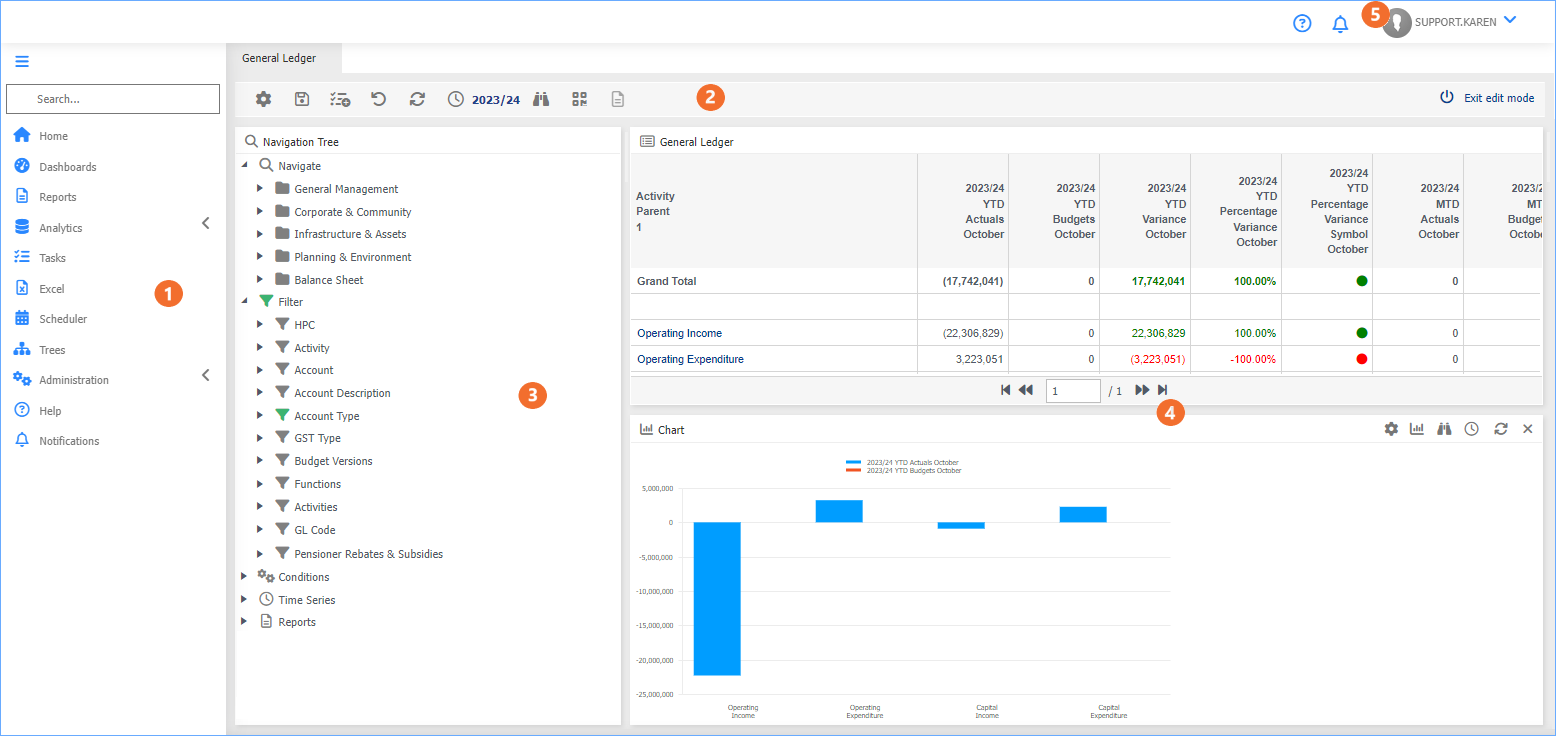
 Functions
Displays the list of available functions/modules that you are licensed for.
Functions/modules with a < symbol on the left means that when the selection is clicked on that it will display a drop-down menu.
 The hamburger minimises this panel so that you have more screen realestate.


 Menu button
These menu options only display if you are in edit mode.
 Navigation Tree
Is where you can manipulate the data in the Data Browser tab to the right on the Navigation Tree window.
The Navigation Tree window uses similar mouse techniques to those in Windows Explorer, ensuring that you can apply your existing skills, quickly and easily, to navigate around your data.
To expand the navigation tree window:
- Move your mouse between the navigation tree window and the data browser window (at the top).
-
Your Mouse cursor will change to indicate the tree window can be expanded.
 .
.
For more information, refer to navigation tree.
 Data Browser or Chart widgets
The Data Browser window displays the selected Dataset fields as filtered by the Navigation Tree.
For more information, refer to data browser.
 Login Name
Will only display if using Performance Only.
 Access the online help.
 View your notifications.
To add a profile picture
- Click your login name
- Choose Profile Picture
- Click Upload
- Select your photo/image
- Click Ok