Edit Mode / Save Report
To keep all your changes and alterations to the widgets you have added.
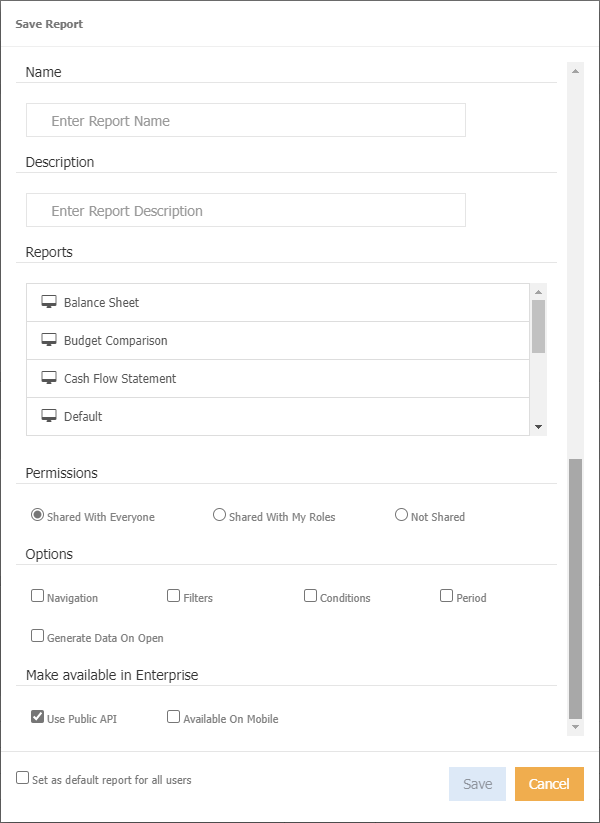
Saving a report will display the below popup. This way of saving will save your Data Browser layout as well as your Navigation Tree.
Name
Enter a name for the report, alternatively, select an existing report name from the 'Reports' section.
Description
(optional) Enter a description.
Reports
List of existing reports, based on the 'Permissions' chosen.
Permissions
Who will be able to run/view the report
Shared with Everyone - Everybody can see/run the reports. Only the data restricted by their security access will be displayed to them.
Shared with My Roles - Anybody who is in the same role/security group as you will see/run the reports.
Not Shared - Only you can see/run the reports.
Options
Keep the report criteria as you have defined for the data browser.
Navigation - save the navigation tree/layer as currently being viewed.
Filter - save the filters as chosen for the data browser.
Conditions - save the conditions as chosen for the data browser.
Period - save the time series selected. Used for opening the report at a fixed point in time, for example you have created a report that is designed to be viewed for December 2021, everytime the report is loaded, it will load for December 2021, not the timeseries you are viewing at the time. It is not a current report that is run every month. Keeping this unticked allows the report to load for the currently selected time series.
Generate Data on Open
Note
This option is controlled by permissions.. Generator needs to be made available via the web.
Every time the report is run it will take time to load as data will be extracted from your source system e.g. Oracle (using the Generator) and be reimported into the system automatically. When the report is finished loading, it provides up to date data.
This option is controlled by permissions.
NB: Generator needs to be made available via the web.
Make Available in Enterprise
Use public API - Exposes the report to be run via the Public API. For Enterprise customers, the report will show on the report list in the Enterprise Portal.
Available on Mobile - make the report availble on mobile app.
Set as default report for all users
Note
This option is controlled by permissions..
Control whether or not the report you just saved becomes the default report i.e. the report that shows when refreshing the screen/page.
Our recommendation is to keep the default report simple to minimise loading time.