Edit Mode / Manage Widgets
Add new widgets for the relevant tab and edit existing widgets from the dashboard.
Initially we have included some basic dashboards already set up, but you are able to create your own and edit them how you like.
When you select which widget to use, it will default that name to the title. You can edit this name if you want. Next you need to add which dataset you want to use from the dropdown menu.
Once selected, click add at the bottom and the widget will appear in your Data Browser.
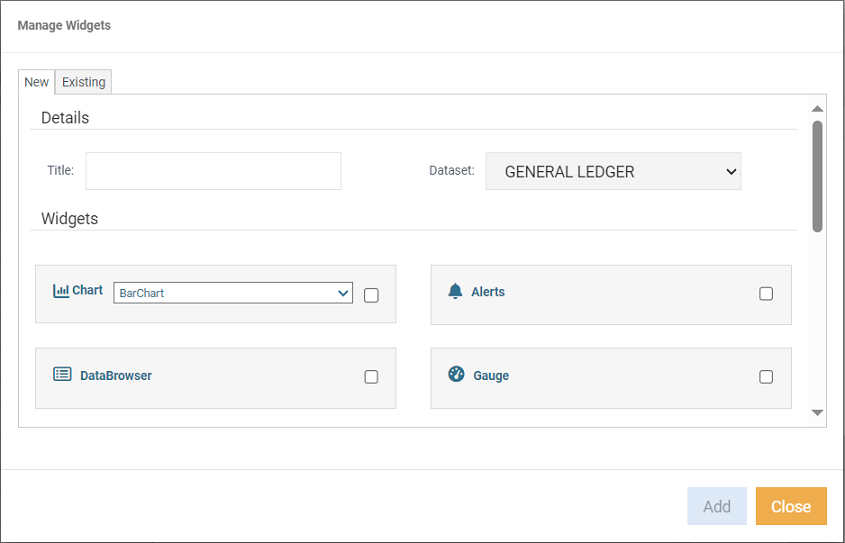
- In the title field, enter a name for the widget, if a name already exist, you can rename it.
- Select which dataset you want to use from the dropdown menu.
- Select the type of widget. Refer to the See Also section below for options.
- Click Add.
Existing
This is where you can:
 delete,
  rename or,
  show/hide widgets as required.
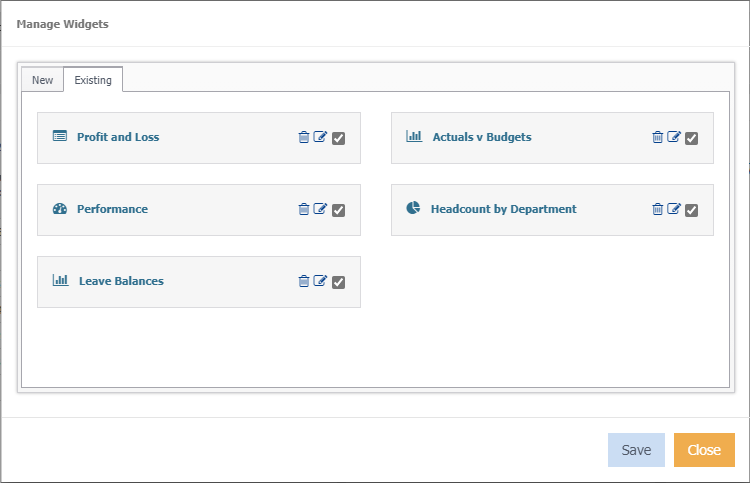
- With changes made, click Save.