Data Browser / Widgets - Gauge
Ability to see what is happening within your business in real time reflected in a variety of gauges.
Once a measure has been set up (you may need to have your Systems Administrator set them up) you can have various different types and styles of measures.
Gauge Widget buttons
Configure Gauge
-
Click
 to display the configure gauge popup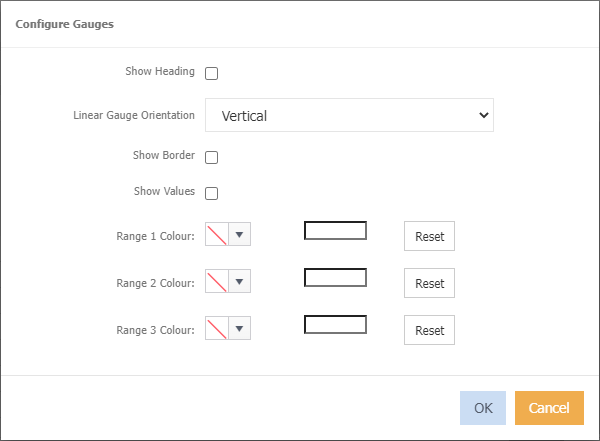
Show Heading - diaplay the name of the measure, for example YTD % Variance.
Linear Gauge Orientation - only applicable to the linear gauge. Select either Vertical or Horizontal.
Show Border - displays a border around the gauge.
Show Values - displays the value underneath a gauge.
Range 1 Colour - choose which colour you would like to use as the indicator for the first range.
Range 2 Colour - choose which colour you would like to use as the indicator for the second range.
Range 3 Colour - choose which colour you would like to use as the indicator for the third range.
Types of gauges
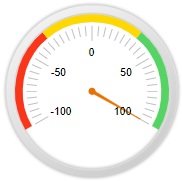
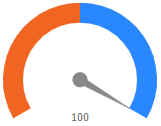
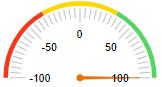
Below are examples of what the types of gauges look like
-
Click
 to select
RadialGauge
RadialGaugeModern
RadialGauge180
LinearGauge
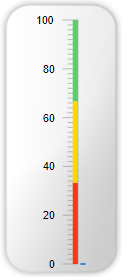 or
or 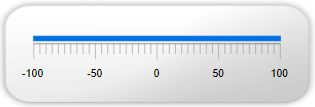
Right click menu options
Add Measures
- Right click in the gauge widget window or on the gauge/measure.
-
Select Measure > Add to display list of Measures in your database.
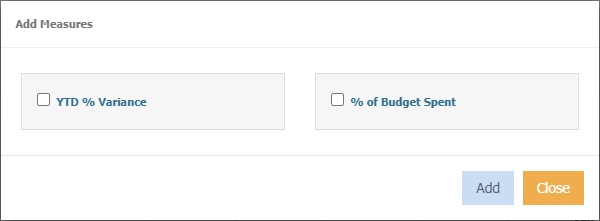
-
Tick the relevant measure(s) to add.
- Click Add
Remove Measures
- Right click on the gauge you want to remove
- Select Measure > Remove
Send to - send the measure to a dashboard.
Configure - refer to configure gauge above.
Info - show which filters and conditions have been applied.