Data Browser / Menu Options
In the Data Browser window, you have the option to use the right click functionality for multiple data manipulation uses.
Some of these are available in the top ribbon as well as in the navigation window.
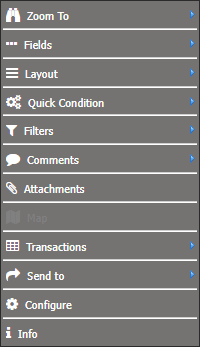
Zoom To
This allows you to quickly zoom into a certain level of the report e.g. the activity level or account level.
Fields
Fields are configured as part of the dataset, and therefore are not available for reports.
Fields are columns in the data browser which can be added, removed, repositioned or the appearance and tolerances can be set such as red for "in debt"
Refer to resizing and repositioning for more information.
Layout
Not available for reports.
Display information in the data browser in a more report-looking way.
The outer layer is used for fixing in place a selected layer in the Data Browser window.
Once set, you can zoom to any layer that you want to look at in more detail whilst keeping the information grouped by the outer layer.
This can allow you to look at all common costs across different regions, sites or departments for comparison and evaluation.
Quick Condition
A quick condition applies on a per column/field basis which allows you to create your own with greater/ less than, equal/not equal to and between/not between.
Filters
Apply filters within a report.
Apply Filter Lock which ever item you right mouse click on, the filter is applied.
Remove Filter Lock and Remove All Filter Locks – removes the lock/s applied.
Comment
A comment can be attached to a layer in the Navigation Tree offering explanation or information to the user(s).
For option to be visible you need to switch comments and attachments on via configure.
These comments will be locked onto the layer you are zoomed down to.
When a comment is attached, it will display a red speech bubble onto the name column.
Attachments
Add/attach other files from your computer you have created e.g. PDF documents, word notes etc.
Map
Transactions
Option to either choose GL transactions or the budget audit.
Send To
Here you have the option to send your report you have created to either excel report, dashboard or documents.
Sending to excel or report also gives you an option to select a sub layer.
Sending to a report is the same as going through the report editor, except all your alterations are already done in the data browser.
Configure
Alter the appearance of the Data Browser as well as what the report would look like if you were to export it.
Info
A snapshot of the selected filters and conditions.