Data Browser / Layout
Not available for reports.
Display information in the data browser in a more report-looking way.
Set Outer Layer To
You can not do this with a multi-layer report.
The outer layer is used for fixing in place a selected layer as a single dimension. Such as looking at all common costs across different regions, sites or departments for comparison and evaluation.
Outer Layers are dynamic and allow for double-clicking on a layer to navigate through.
Alternatively, zoom to any layer that you want to look at in more detail whilst keeping the information grouped by the outer layer.
Show outer layer Totals
Display sub totals to the outer layer on or off:
- Right click in the data browser widget
- Select Configure
- Scroll down to the data section
- Tick Show Outer Layer Totals
- Click Ok
Set Multi Layer To
Ability to add as many layers as you want into the data browser as a 2 dimensional report. It is 2 dimensional as you cannot zoom to layers you don't have access to.
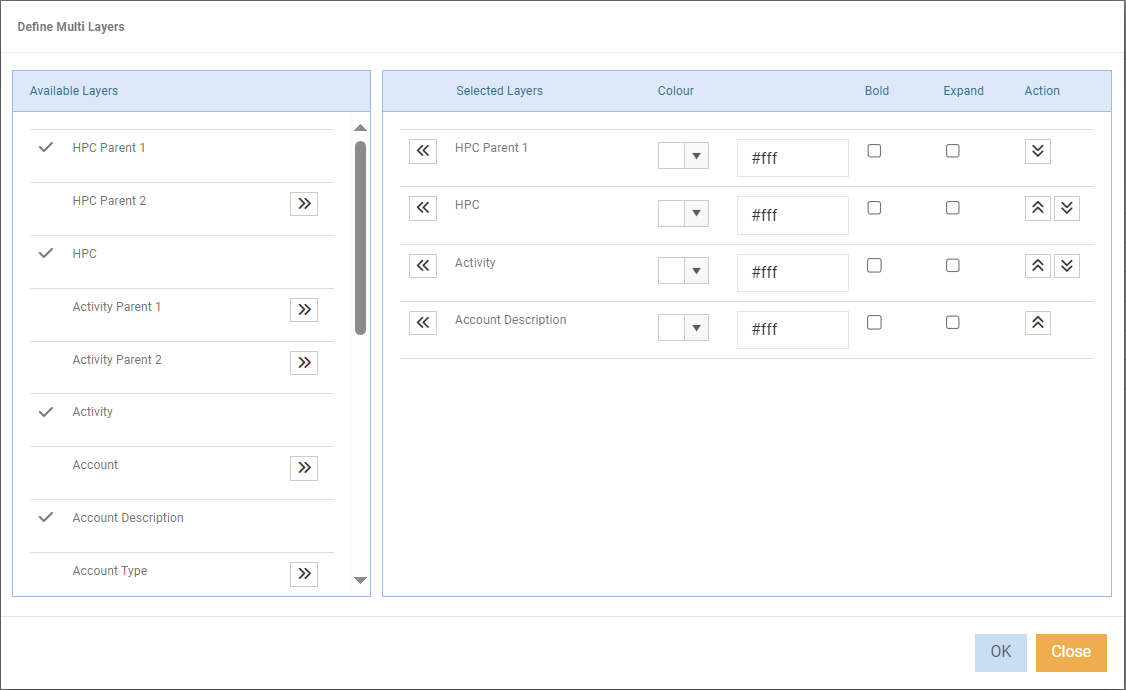
To define layers
In additional to selecting layers, you can specify different colours for each layer, bold them as well as choose which layer you want to automatically expanded.
Note
When selecting the layers, you must select them in the order you want them to be displayed in the data browser.
If you select the wrong order you may have to start again.
Available Layers - Layers available as defined in your dataset.
- Click
 next to the layer(s) you want to add.
Selected Layers - How you want the layer to display. The following are optional:
- Select a colour. Alternatively, enter the hexcode for the colour.
- Tick Bold checkbox if the layer header text is to be bold.
- Tick Expand checkbox if the layer is to automatically expand.
- From the Action column, use the arrows to re-order the layers.
Set Crosstab Layer To
Displays fixed layers with duplicate fields across the screen. This creates a landscape version of reports and can be useful for grouping certain layer differences together. For example,
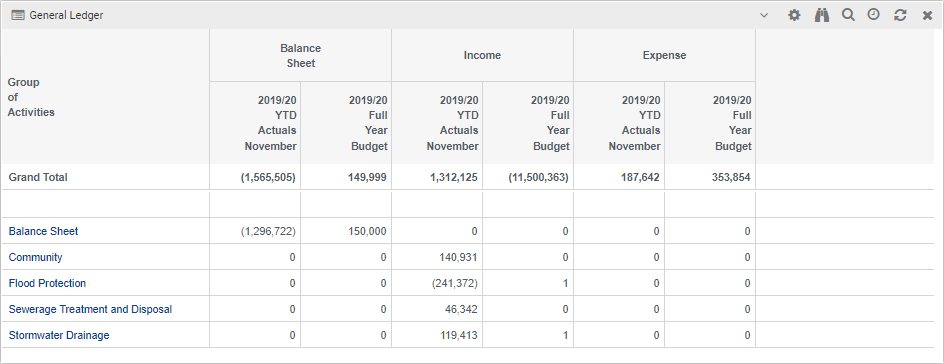
Be mindful of the amount of information that is presented.
Set Crosstab Outer Layer To
Works in conjuction with 'Set Crosstab Layer'.
This can allow you to look at all common costs across different regions, sites or departments for comparison and evaluation.