Dashboards / Create
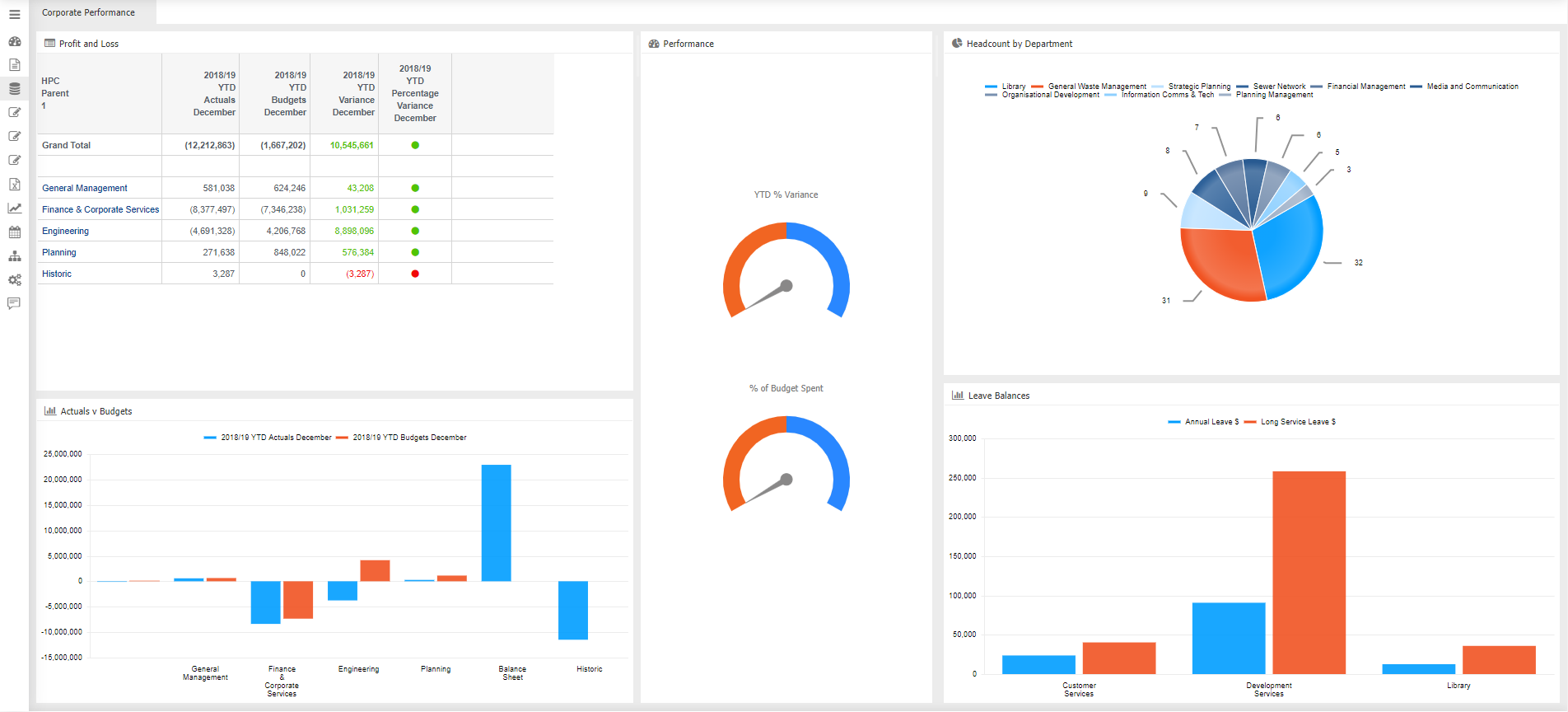
A dashboard provides the capability of viewing "regular" information in one place. Information is sent from reports, charts etc from multiple datasets.
Tip
You can have multiple dashboards open at one time. To close tabs that you do not want open anymore, choose the "close tab" from Edit Mode.
-
From the Functions side bar, select
 or
or  ,
if functions side bar is expanded.
,
if functions side bar is expanded.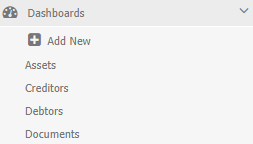
-
Click

-
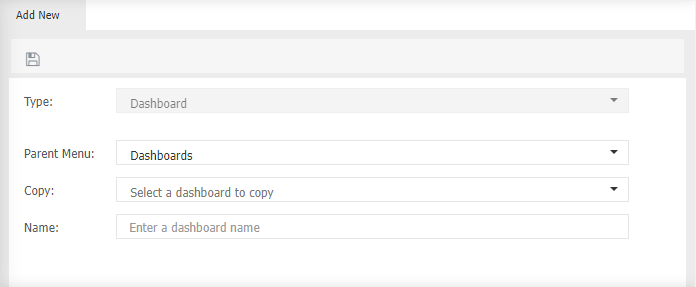
Type - defaults to dashboard.
-
Parent Menu select where you want the dashboard to be created.
-
Copy select which dashboard you want to use as template.
-
Name - give your new dashboard a name/title.
-
Click
 to save.
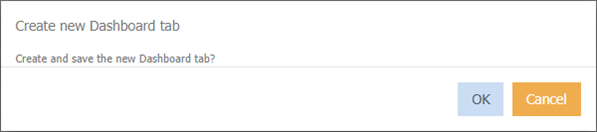
The below message will display
-
Click OK.
Generally, with new dashboards they will be blank, to display information, you will need to either send information to a dashboard from the data browser, or add widgets.
Dashboard Layout
- Place your dashboard into Edit Mode.
Refer to settings for further information.
Save your changes
To keep all your changes and alterations to widgets you have added to the dashboard:
- Click
- If you are saving one of the default reports, a pop-up window will check if you want to update all users to view the report as you have saved this.
Once you have selected a dashboard, it will be presented in the Data Browser window.