Budget / Worksheets
Budget worksheets (also known as budget popups) is a working paper for a partiuclar line item such as payroll information to assist in budget preparation.
The value in the worksheet will flow through to the Budget Entry window, ensuring the consistency of data between the Budget window and the worksheet.
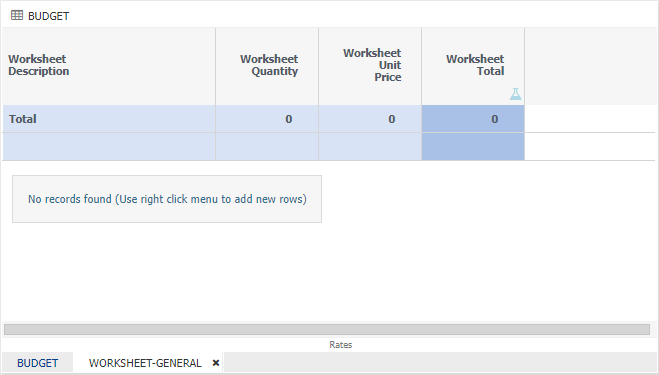
A  in the heading of the column indicates this is a formula column and calculated based on amounts in other columns.
A formula based column cannot be changed.
in the heading of the column indicates this is a formula column and calculated based on amounts in other columns.
A formula based column cannot be changed.
Right click menus:
Save - Save the changes made, but continue working on the worksheet.
Save and Close - Save the changes and close the worksheet.
Add New Row - Add a new row to the worksheet.
Duplicate Row - Copy/duplicate the row.
Delete Row - Delete the selected row.
Delete All Rows - Delete all rows within the worksheet.
Fill Up - Copy the existing value up the worksheet rows.
Fill Down - Copy the existing value down the worksheet rows.
Copy - Copy text/values.
Paste - Paste copied text/values.
Export to Excel - Options include: For Import, Without Formulas and With Formulas.
Import from Excel - Import spreadsheet.
Configure - refer to budget - data entry configure for further information.
To create a worksheet entry
- Right click on a cell.
- Select Worksheets {Worksheet name}.
- Right click and choose Add New Row.
- Enter the relevant details.
- Click Save either from the right click menu or widget save.
- Select the budget tab.
- A
 will display in the cell to indicate a worksheet exists.
To view worksheet rows
- Right click on the cell where a exists.
- Select Worksheets {Worksheet name}.
To delete a worksheet row
- Right click on the cell where a exists.
- Select Worksheets {Worksheet name}.
- Right click on the row, choose Delete Row
To import worksheet rows
- Ensure your worksheet already has a row entered.
- Export the worksheet by choosing Export to Excel > For Import.
-
With the spreadsheet downloaded:
- Enter in the 'Worksheet Description', 'Worksheet Quanity' and 'Worksheet Unit Price'. 'Worksheet Total' does not need to be calculated as this will happen on import.
- Add the relevant rows. No need to enter a 'Unique Key' or 'Phasing Code'.
- Copy values that are in the cells for 'Worksheet Year ID', 'Worksheet Budget Name', 'Worksheet Parent Budget Name', and 'Worksheet PostingString'.
- Paste the copied cells into your newly created rows.
- Save the spreadsheet.
-
Import the spreadsheet by choosing Import from Excel.
- Choose your saved spreadsheet.
- Click Ok
- Save your worksheet
See Also
Administation - system - control centre - Reporting Platform - {Dataset name} - Budget Information for setup of worksheets.