Budget / Sub Module Links
A sub module link is a link to another budget within the budget entry screen. For example, a forecast or a labour budget.
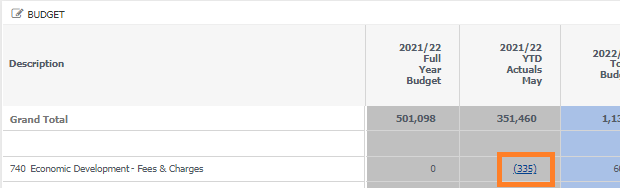
Configuration
-
Dataset fields:
- Navigate to 'administration - system - control centre - reporting platform - {dataset name} - fields'.
-
Create a new field.
Make sure the name is relevant. For example, 'Assets Link'.
-
Ensure the field construction has the correct syntax. The {@CurrentSelectedDrillPath} variable is usually required. For example,
-
For a group of accounts:
case when LINKS.SEGMENT1 between '700' and '800' then '{@CurrentSelectedDrillPath}' else '' end
or;
-
For an individual account number:
case when LINKS.SEGMENT1 = '740' then '{@CurrentSelectedDrillPath}' else '' end
NOTE: LINKS.SEGMENT1 is dependant on your structure and how accounts are created.
-
-
These fields can be hidden to eliminate any confusion when adding fields in the databrowser.
- Click Save.
-
Budget fields:
- Navigate to administration - system - control centre - reporting platform - {dataset} - budget information - budget names - {budget name} - budget fields.
- Create a new field.
- Select the name of the field created in the above steps.
- In the 'sub module link' column, choose which budget you want to link to.
- In the 'sub module link field' column, choose which budget field the link will display.
- These fields can be hidden to eliminate any confusion in data entry.
- Click Save.