Budget / Navigation Tree
Navigation Tree Icons
 Configure
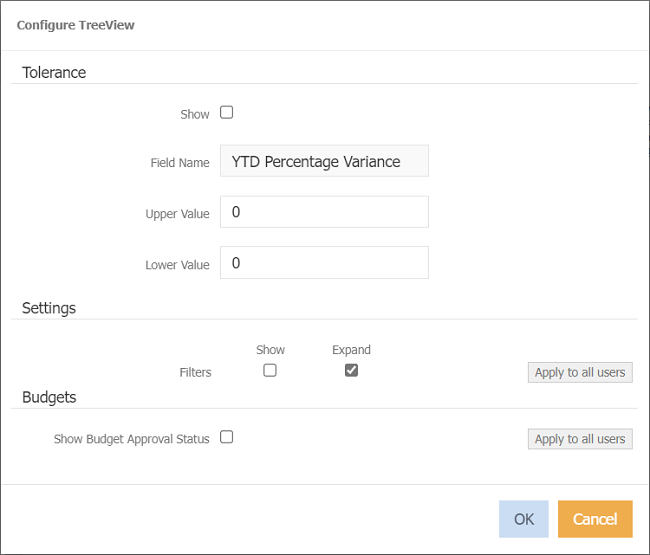
Tolerance
The Navigation Tree structure can be configured to display varying coloured folders responding to a variance or tolerance set by your System Administrator.
For example, the System Administrator has set the tolerance display based on the organisation's 2021/22 Year-To-Date Budget figures for the month of July.
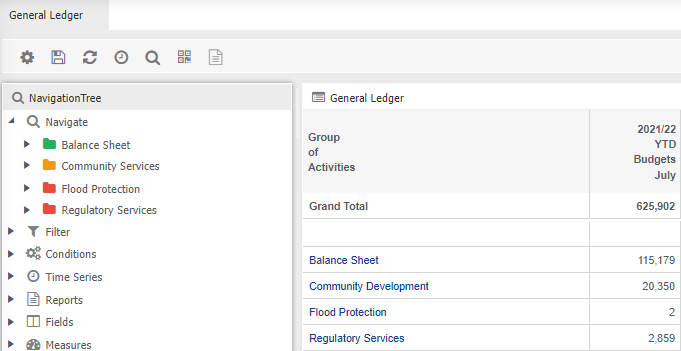
 Greater than or equal to upper tolerance.
 Less than or equal to lower tolerance.
 Within the upper and lower tolerance.
To set the tolerance
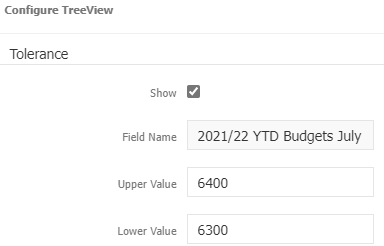
- Tick Show.
- Click into the field name field, or as per the screen capture above, click on 2021/22 YTD Budgets July.
- Select a field from the field popup.
- Enter a upper value.
- Enter a lower value
- Click OK to change the tree structure.
Settings
Filters - 'Show' or 'Expand' filters in the navigation tree.
 click to apply setttings to all users.
Budget
Show Budget Approval Status - tick to see the status of data entry for a budget name.
 = Approved - marks the budget as read only.
 = Complete - marks the budget as read only.
Setting the status to complete will send an email to the user advising that budget approval is required.
 = Started - able to make changes to the budget.
For example, a Cost Centre Manager or Business Centre Manager have users that enter budget information, and the user has updated the status to 'Complete'.
The Cost Centre manager receives an email and they can then review the budget.
click to apply setttings to all users.
 Find in Grid
Search or find alpha and/or numeric descriptions such as cost centres/accounts, and filters within the navigation tree.
 Time Series
Changes the time series of all widgets in your Data Browser/dashboard.
This is useful to see multiple widgets all at one time.
Time series is not applicable for labour budgets.
 Refresh
Reverts the Data Browser/dashboard to the original saved state that it is in.
This is helpful if you have made changes you do not wish to save and saves time for you to close the tab and reload it again.
 Minimise
Minimise the Navigation Tree to give you more screen real estate.
Right Click Menu Items
Collapse - Collapse the levels within the navigation tree to display the parent levels.
Budget Approvals
 Not Started.
 Started.
 Completed.
Configure - refer to the configure icon above.