Permissions / Report Access
Assign users/roles to which reports they will have access to via the dynamic reporting tab.
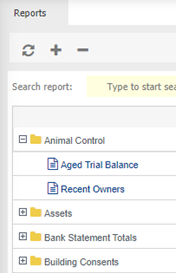
The user will be able to run reports from the reporting tab but may not have access to the dataset/connector.

 save.
save.
 refresh screen.
 copy permissions between users.
 export permissions to excel.
Set permission for - select either the individual user(s) or a role to assign relevant access.
Apply permissions to users or roles
- From Set Permissions For, select an individual or a role.
- Click the dataset/connector name, for example General Ledger.
- Click .
- Repeat for other users or roles.
Alternatively,
Copy user/role permissions from one user/role to another within the same dataset.
-
Click
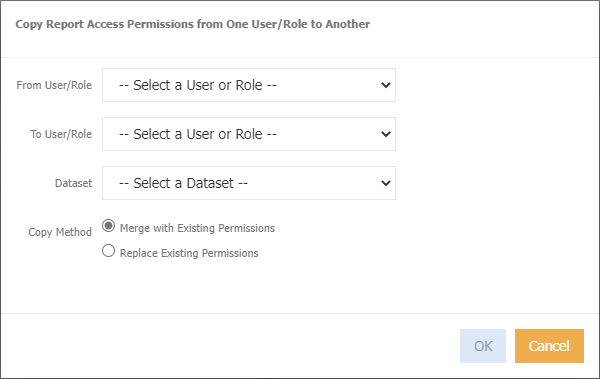
From User/Role - choose the relevant user or role that you want to copy from.
To User/Role - choose the relevant user or role that you want to copy to.
Dataset - select a dataset.
Copy Method - select either Merge with Existing Permissions, or Replace Existing Permissions
-
Click ok
Export to Excel
-
Click
to display the below screen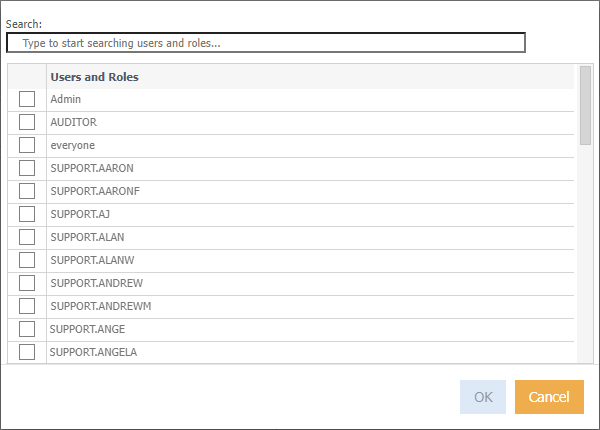
-
Select the relevant user(s) or role
-
Click Ok, the below displays
-
Click Download, excel will automatically open.
Note
The permissions included in the export refer to:
D = Direct (applied on individual user).
I = Indirect (applied via a role).
I/D = Mixed (applied on individual user and role).