Permissions / Menu Items
Menu Items relate to menu items in the left-hand panel.
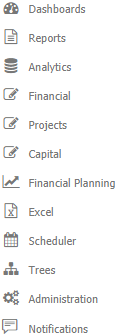
Assign users/roles to the menu items that reflects their requirements.
To specify what a user can see within the menus, refer to Data Access.

 save.
save.
 refresh screen.
 copy permissions between users.
 export permissions to excel.
Set permission for - select either the individual user(s) or a role to assign relevant access.
Filter Icons:
 indicates that you have access.
Apply permissions to users or roles
- Click into the Set permission for field. Start typing the users name, or the role name to select. Individual or multiple users can be chosen.
-
Expand to display all levels, for example:
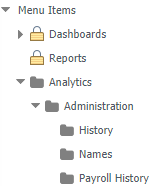
This enables you to visually see that all access has been applied.
-
Click the parent level for example 'Analytics', a
will then display for all items. - Click
Alternatively,
Copy user/role permissions from one user/role to another within the same dataset.
-
Click
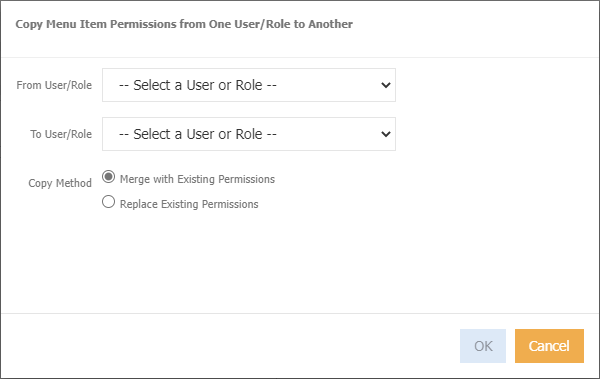
From User/Role - choose the relevant user or role that you want to copy from.
To User/Role - choose the relevant user or role that you want to copy to.
Copy Method - select either Merge with Existing Permissions, or Replace Existing Permissions
-
Click ok
To apply individual items
- Click into Set permission for. Start typing the users name, or the role name to select.
- Expand the menu item you wish to give the user/role access to
- Click to apply a
- Click
Note
Selecting a budget name will automatically grant permission to the budget name.
To remove a menu item
- Click into Set permission for. Start typing the users name, or the role name to select.
- Expand the menu item.
- Click to menu name to remove the lock.
- Click
Export to Excel
-
Click
to display the below screen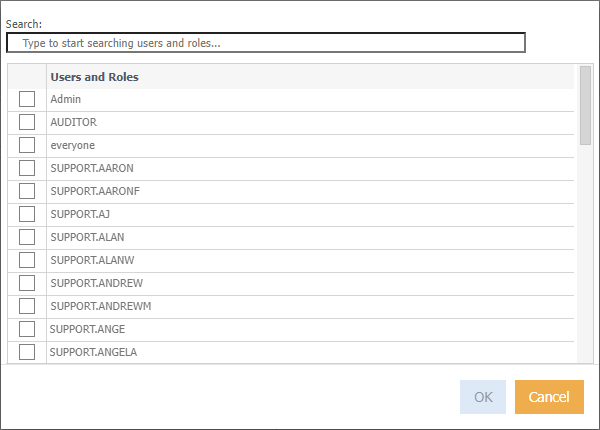
-
Select the relevant user(s) or role
-
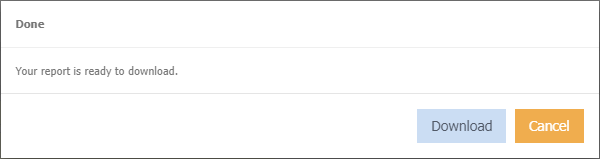
Click Ok, the below displays
-
Click Download, excel will automatically open.
Note
The permissions included in the export refer to:
D = Direct (applied on individual user).
I = Indirect (applied via a role).
I/D = Mixed (applied on individual user and role).