Permissions / Measures
A measure is an indicator of performance, or in budget terms a percentage of the budget spent or a percentage variance.
Assign users/roles to provide visibility to measures.

 save.
save.
 refresh screen.
 copy permissions between users.
 export permissions to excel.
Set permission for - select either the individual user or a role to assign relevant access.
Apply permissions to users or roles
- From Set Permissions For, select an individual or a role.
-
Select the dataset/connector name, for example General Ledger.

-
Click next to the measure to apply a lock to indicate the user has access.
- Click
- Repeat for other users or roles.
Alternatively,
Copy user/role permissions from one user/role to another within the same dataset.
-
Click
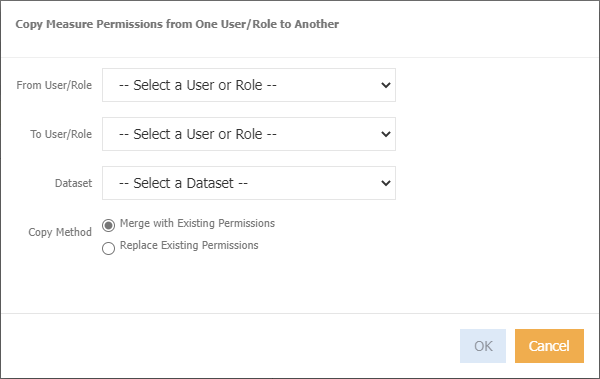
From User/Role - choose the relevant user or role that you want to copy from.
To User/Role - choose the relevant user or role that you want to copy to.
Dataset - select the dataset.
Copy Method - select either Merge with Existing Permissions, or Replace Existing Permissions
-
Click ok
Export to Excel
-
Click
to display the below screen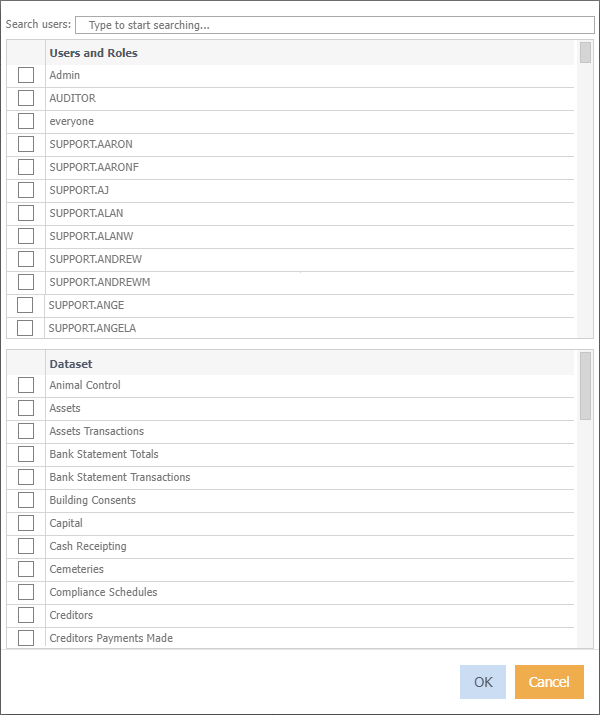
-
Select the relevant user(s) or role
- Select the relevant dataset(s)
-
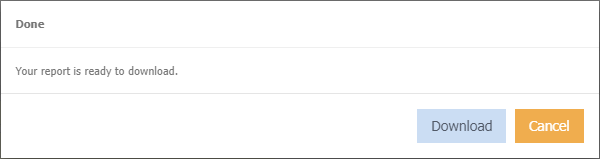
Click Ok, the below displays
-
Click Download, excel will automatically open.
Note
The permissions included in the export refer to:
D = Direct (applied on individual user).
I = Indirect (applied via a role).
I/D = Mixed (applied on individual user and role).