Permissions / Data Access
Assign users/roles to include/exclude access to layers/cost centres, and filters from specific datasets/connectors, dashboards.
Data Access works in conjunction with Menu Items. If a user does not have the menu item, that data is invisible.
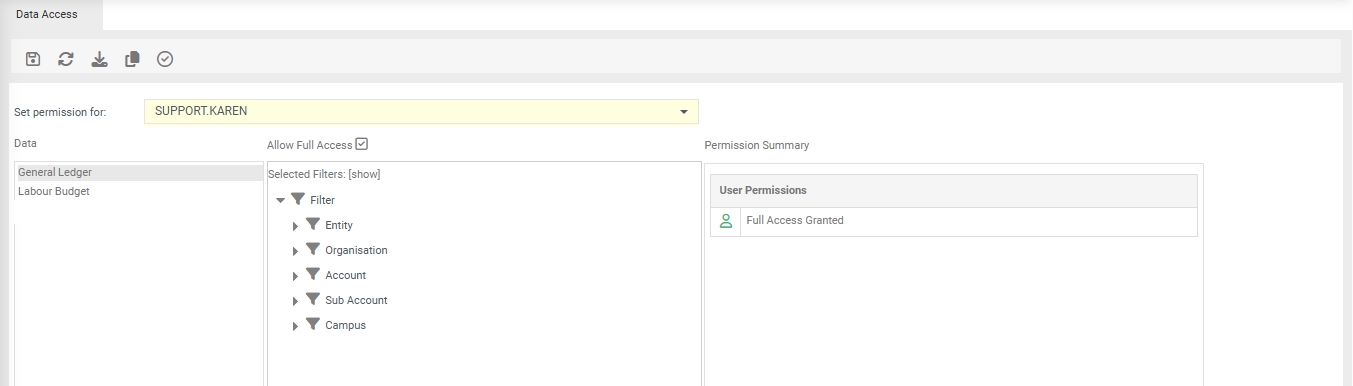
 save.
save.
 refresh screen.
 export permissions to excel.
 copy permissions between users.
 validate permissions. Checks all filter paths for all users and remove any that do not exist
in the filter trees.
validate permissions. Checks all filter paths for all users and remove any that do not exist
in the filter trees.
Set permission for - select either the individual user(s) or a role to assign relevant access
Allow Full Access - tick to grant the user(s) or role full access to the data. Below outlines how 'Full Access' works.
User is not in a role - selecting the relevant options will take affect as per the icons below.
User is in one role - the user will inherit the role permissions.
User is in multiple roles - the role that has the least amount of access will have that permission (this is done as per industry standards)
Permission Summary - displays the assigned permission for the user/role selected.
Filter Icons:
 indicates the user has access.
 indicates the user does not have access.
 indicates the filter has been excluded.
Apply permissions to users or roles
- From Set Permissions, select an individual, multiple users or a role.
-
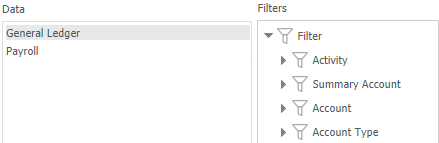
Select the dataset/connector name, for example General Ledger.
-
Click next to the filter to expand.
-
Click the filter name to apply a lock.
Repeat for all filters in the same data set.
-
Or; If the user(s)/role requires full access to the filters, tick Allow Full Access.
- Click .
- Repeat for other users or roles.
Alternatively,
Copy user/role permissions from one user/role to another within the same dataset.
-
Click
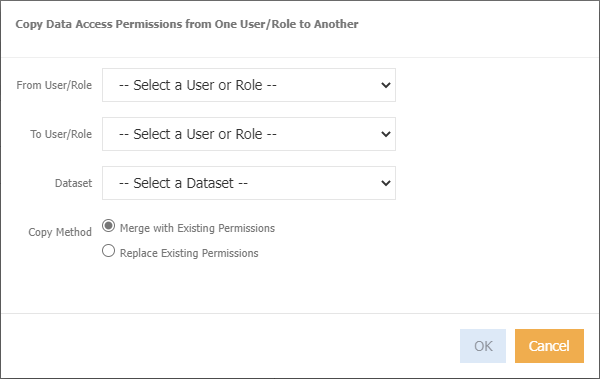
From User/Role - choose the relevant user or role that you want to copy from.
To User/Role - choose the relevant user or role that you want to copy to.
Dataset - select the dataset.
Copy Method - select either Merge with Existing Permissions, or Replace Existing Permissions
-
Click ok
Export to Excel
-
Click
to display the below screen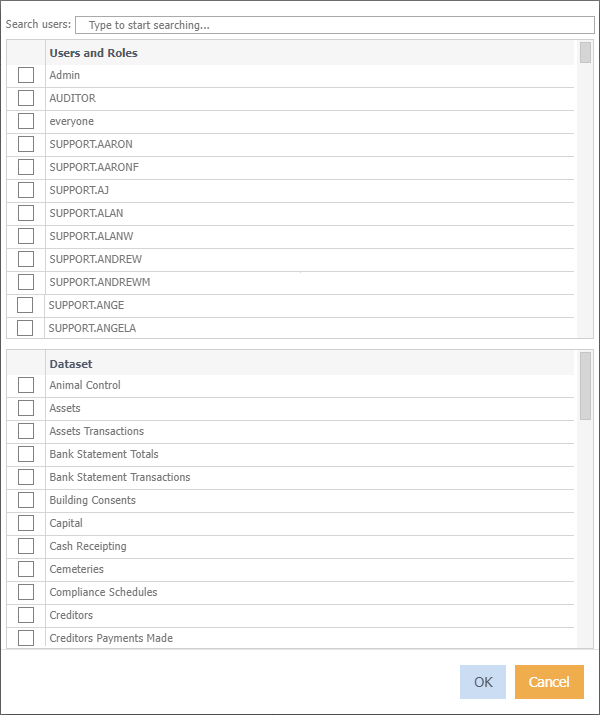
-
Select the relevant user(s) or role
- Select the relevant dataset(s)
-
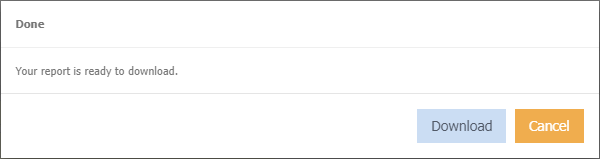
Click Ok, the below displays
-
Click Download, excel will automatically open.
Note
The permissions included in the export refer to:
D = Direct (applied on individual user).
F = Full Access.
I = Indirect (applied via a role).
I/D = Mixed (applied on individual user and role).
Validate Permissions
Check all filter paths for all users and remove any that do not exist in the filter trees.