Permissions / Budget Approval
Assign users/role to be responsible for a particular budget area(s) and allows the status to be changed.
 save.
save.
 refresh screen.
 copy permissions between users.
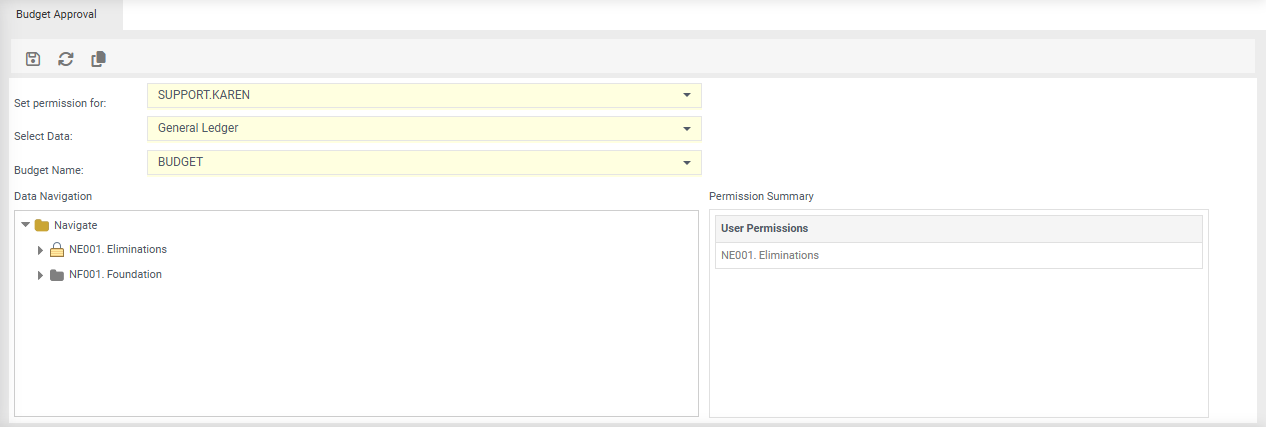
Set permission for - select either the individual user or a role to apply budget approval.
Select Data - seelct the relevant dataset, for exmaple, General Ledger.
Budget Name - select the relevant budget.
Data Navigation section - displays the budget hierarchy.
Permissions Summary section - displays what permissions the selected user/role has.
Filter Icons
 indicates the user or role has access.
 indicate the user or role does not have access.
Apply permissions to a user or role:
- Click into Set permission for, start typing the users name, or the role name to select.
- Select the data, for example General Ledger.
- Select the Budget Name.
- Expand the data navigation you wish to give the user/role access to.
- Click to apply a lock next to each layer/cost centre that the user/role will have rights too.
- Click .
- Click Ok.
- Repeat for each budget.
Alternatively,
Copy user/role permissions from one user/role to another within the same dataset.
-
Click
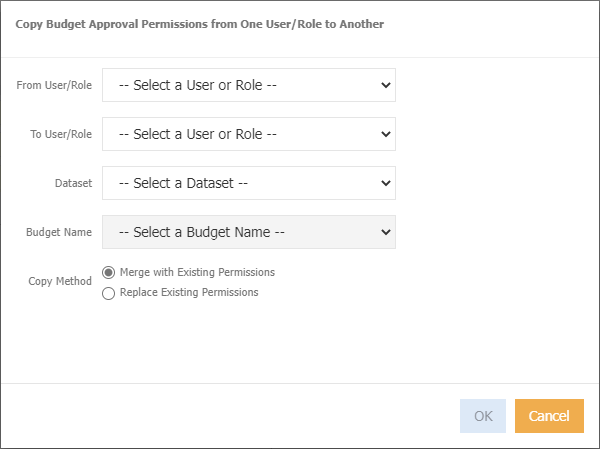
From User/Role - choose the relevant user or role that you want to copy from.
To User/Role - choose the relevant user or role that you want to copy to.
Dataset - select the dataset.
Budget Name - choose which budget the permissions relate to.
Copy Method - select either Merge with Existing Permissions, or Replace Existing Permissions
-
Click ok