Modeller / Budget Recalculation
During or after your budget input, you may wish to change the formulas in Phasing, Budget Rules and/or the Budget Formulas via Control Centre.
In order for these changes to appear in your existing budgets you will need to apply them via the Modeller.
 refresh screen.
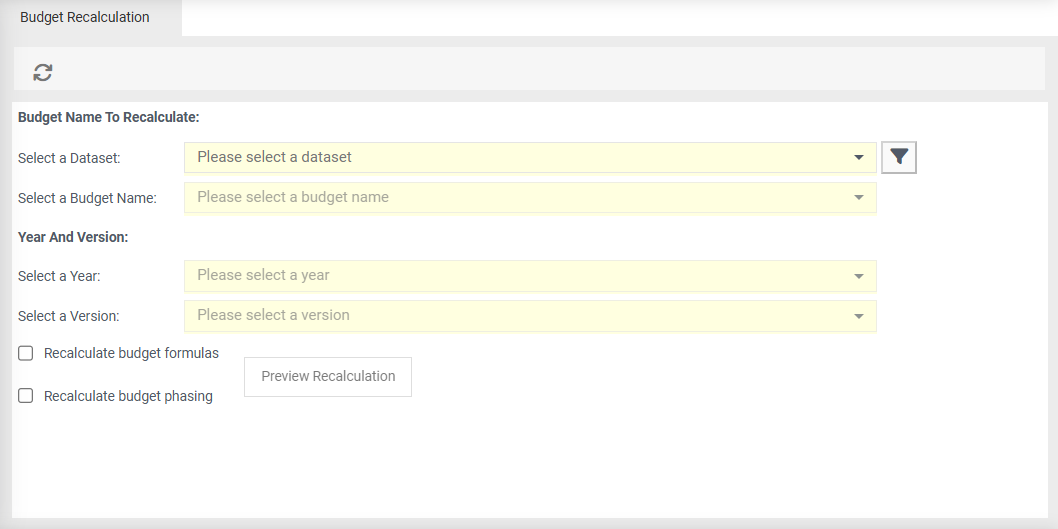
Budget Name to Recalculate
Select a Dataset - choose the relevant dataset which contains your budget, for example General Ledger.
 Filter (optional) - select a particular layer to recalculate.
Select a Budget Name - select the name of your budget.
Year and Version
Select a Year - choose which year of the budget you wish to recalculate.
Select a Version - if available, choose a relevant version.
Recalculate budget formulas - tick to apply any changes made to your budget formulas under Formulas in Budget Fields in the Control Centre.
Recalculate budget phasing - tick to apply any changes made to your budget phasing calculations.
Preview Recalculation - This becomes enabled once one or both of the above options is chosen.
To Recalculate a budget
- Select a Dataset.
- Select a Budget Name.
- Select a Year.
- Tick either Recalculate budget formulas or Recalculate budget phasing or both.
- Click Preview Recalculation to display a preview of the recalculated budget on screen.
- If the recalculation is correct, click Save.