Modeller / Modelling
Create a new budget based on an existing budget.
This allows for "what if" scenarios to be carreid out. For example, you could see how a new budget would look if salaries increased by 5%.
 refresh screen.
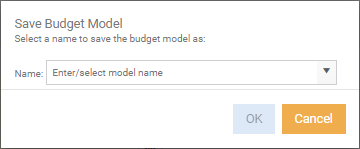
 Save.
Save.
With a change made, clicking save will allow you to enter or select an existing model.
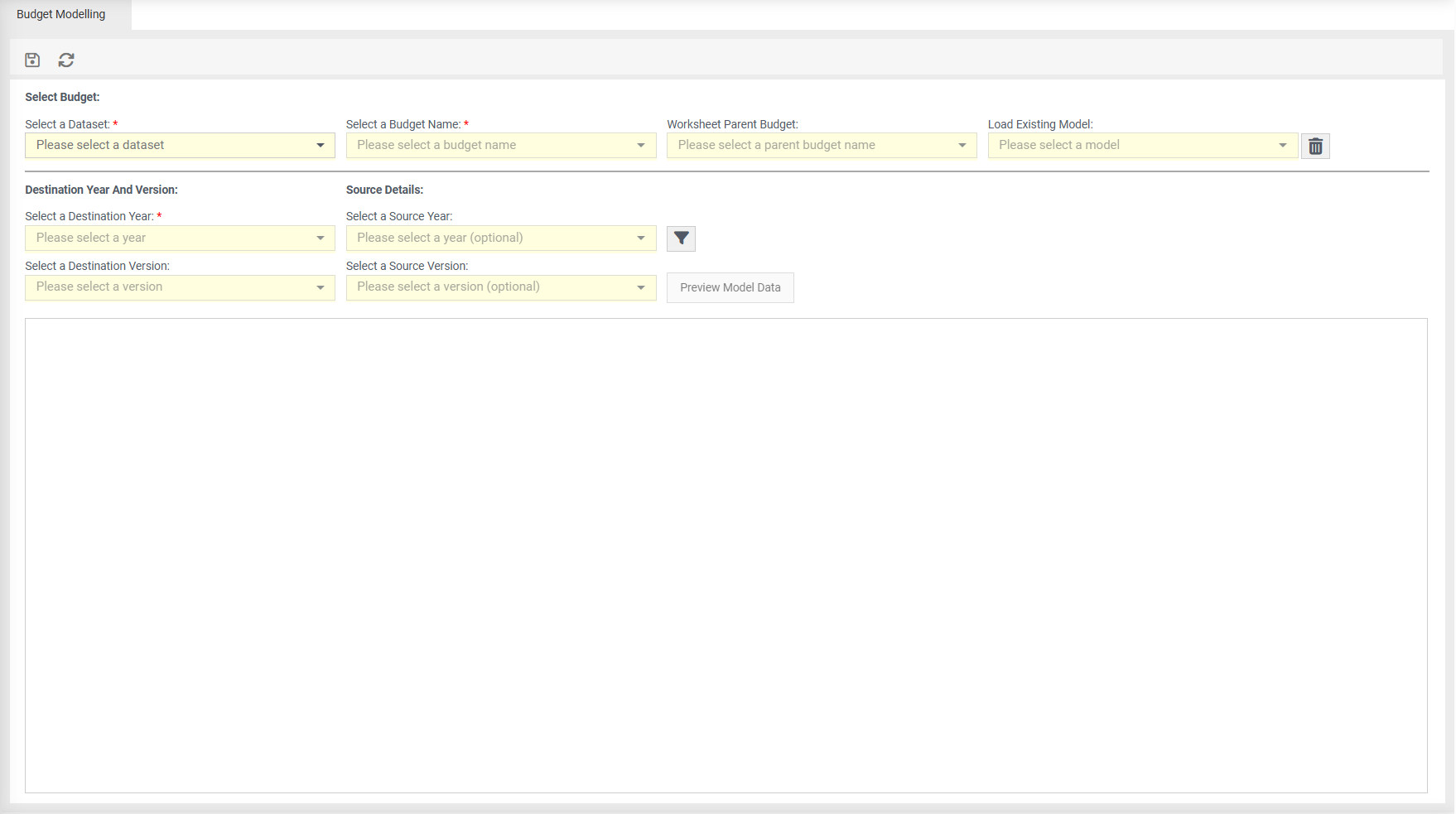
Select Budget
Select a Dataset - choose the relevant dataset which contains your budget, for exmaple General Ledger.
Select a Budget Name - select the name of your budget, for example BUDGET, WORKSHEET-GENERAL.
Worksheet Parent Budget - select a parent budget name. The budget name must be specified within BUDGETWORKSHEETPARENTBUDGETS parameter. This field will become enabled if the 'Select Budget Name' field is the worksheet.
Load Existing Model - select a modal
Destination Year and Version
Select a Destination Year - choose which year of the budget you wish to export.
Select a Destination Version - if available, choose a relevant version.
Source Details
Select a Source Year - Copy between years (Optional).
 Filter (optional) - choose a particular layer to model.
Select a Source Version - Copy between versions (Optional).
Preview Modal Data - Preview/validate data before saving.
Right Click Menu Items
Cell Editor - Assist in editing or creating formulas.
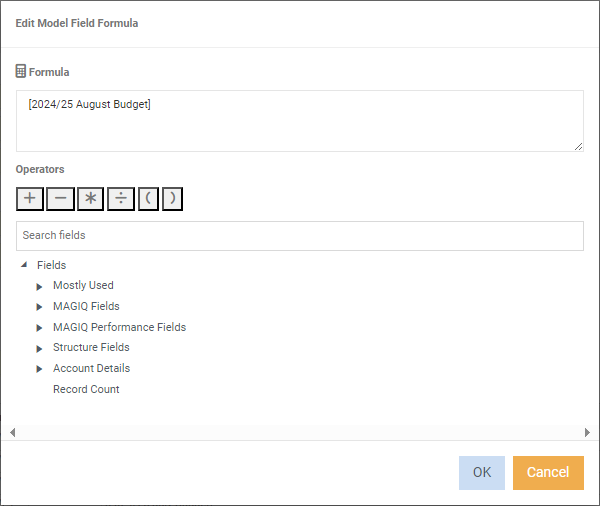
Add Fields -
Insert Default Column -
Insert Blank Column -
Remove Selected Column -
Set Year -
Set Version -
Create a budget model
- Select a Dataset.
- Select a Budget Name.
- Select a Year.
-
The budget fields will then be visual in the bottom of the screen.
In this window you have the right click functionality where you can add fields or alter the columns.