Modeller / Budget Import
Use an Excel spreadsheet to import budgets into the system.
The spreadsheet needs to have the monthly budgets in columns as well as a column that contains the Posting String, which is the combination of the line item (e.g. Account) and other
structures that make up the Posting String in the table that stored the budgets.
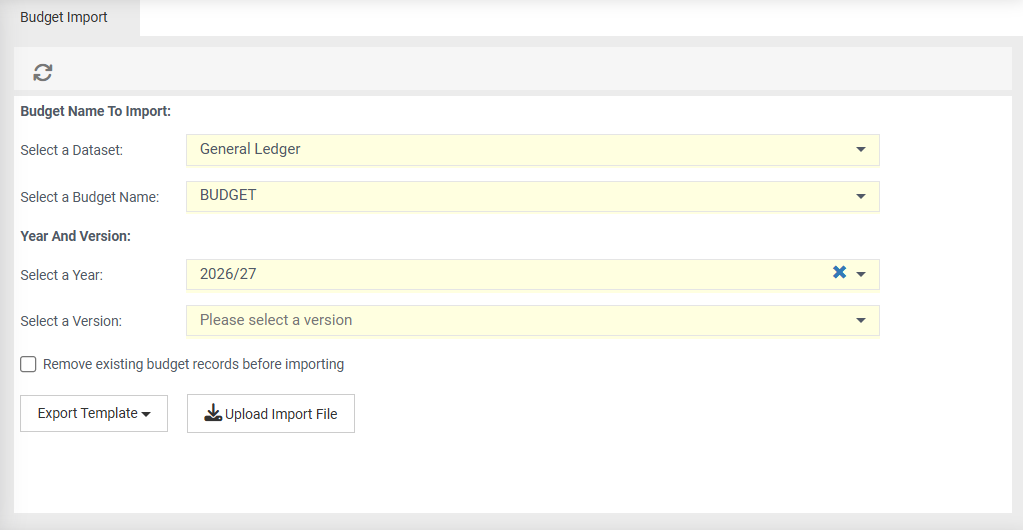
 refresh screen.
Budget Name to Import
Select a Dataset - choose the relevant dataset which contains your budget, for exmaple General Ledger.
Select a Budget Name - select the name of your budget.
Year and Version
Select a Year - choose which year of the budget you wish to export.
Select a Version - if available, choose a relevant version.
Remove existing budget records before importing - tick to clear any amounts in the Budget Name before importing the amounts from the spreadsheet.
Export Template - choose from:
Export Template - export a blank template.
Export Template All Data - export a template with all data, based on the above "settings".
Upload Import File - import your budget for validation.
Note
The best course of action is to export the data first, manipulate in excel, then import.
Validation
Validation will occur on numeric fields, mandatory fields, unique posting strings, valid posting strings, date formats, dropdown values (manual and sql based), and highlight new rows.
Refer to the dataset parameters of PostingStringMask and ExistingPostingStringQuery for validation.
Refer to the budget parameter of ImportValidationIgnoreFields for validation.
Importing your budget
- Select the relevant information from the fields above.
- Choose Export Template and either export the template or export the template with all data.
- Select Upload Import File.
- Select your spreadsheet that you wish to validate.
- Click Ok.
- Your budget is now ready for validation.
- Use Excel to resolve any invalid data and re-upload
- Click Import