Administration / Dataset Mapper
Predominantly used by Consultants. The ability to copy data access and startup filters permissions between datasets.
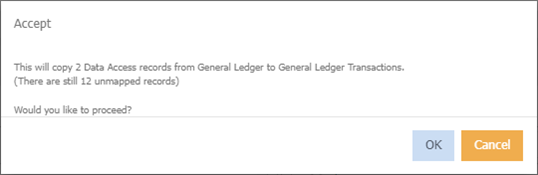
 Commit/Save the mappings made.
If any mappings have been started, the below will be presented.
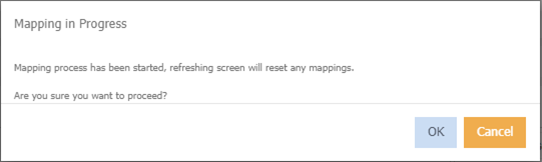
 refresh screen.
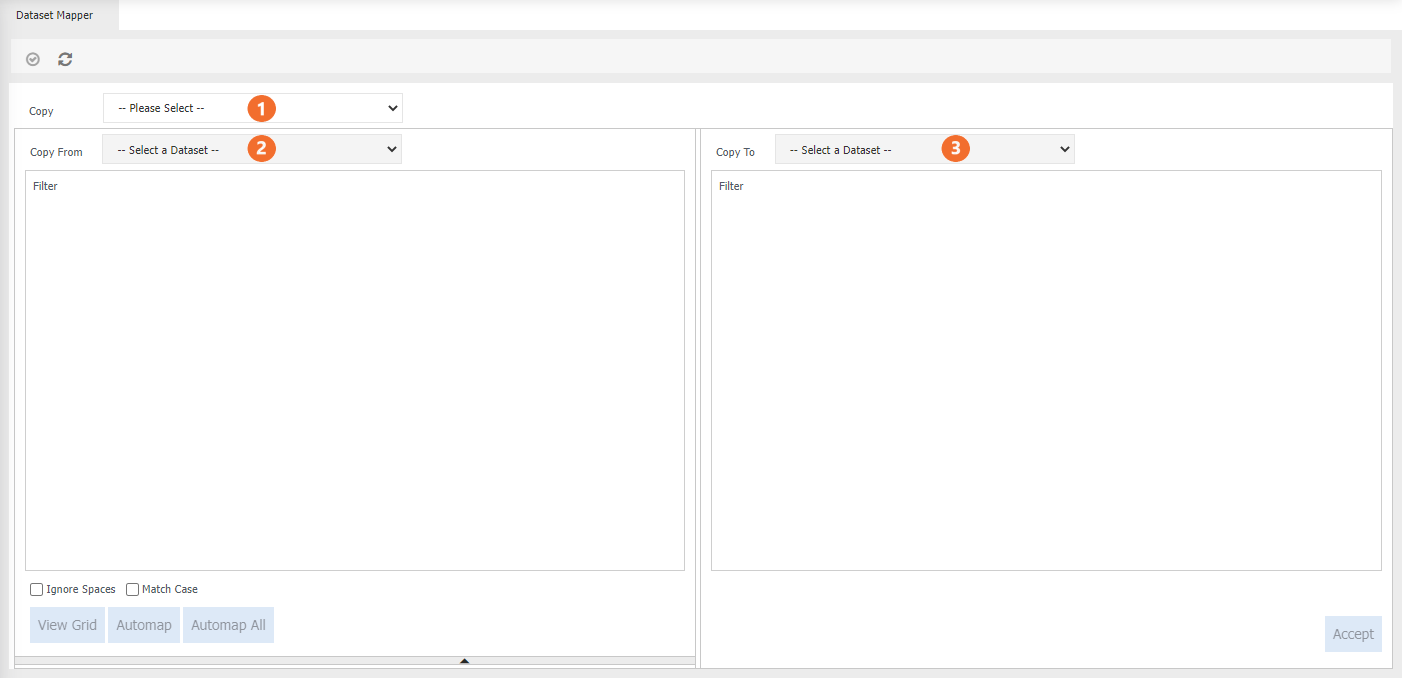
 Select either 'Data Access' or 'Start up Filters'.
 Select the relevant dataset.
 Select which dataset you wish to copy the permissions too.
 Display a list of possible matches. When the grid displays, this button changes to

 Automatically map the selected nodes. This feature currently does not work.
 Automatically maps the nodes. This feature currently does not work.
 Indicates that there is a match.
 Indicates that a match has been made.
Manual Mapping
Note
Dataset Mapper is one time use only. Meaning, the information will not be retained the next time the same datasets are chosen.
Note
Copying of 'Data Access' is like for like. For example, If the user has full access in one dataset, they will have full access in the other.
- Select what you want to copy, ie Data Access
- Choose the Dataset that you want to copy from. For example, General Ledger.
- Choose the dataset that you want to copy to. For Example, General Ledger Transactions.
- Click , this will display a list of possible matches.
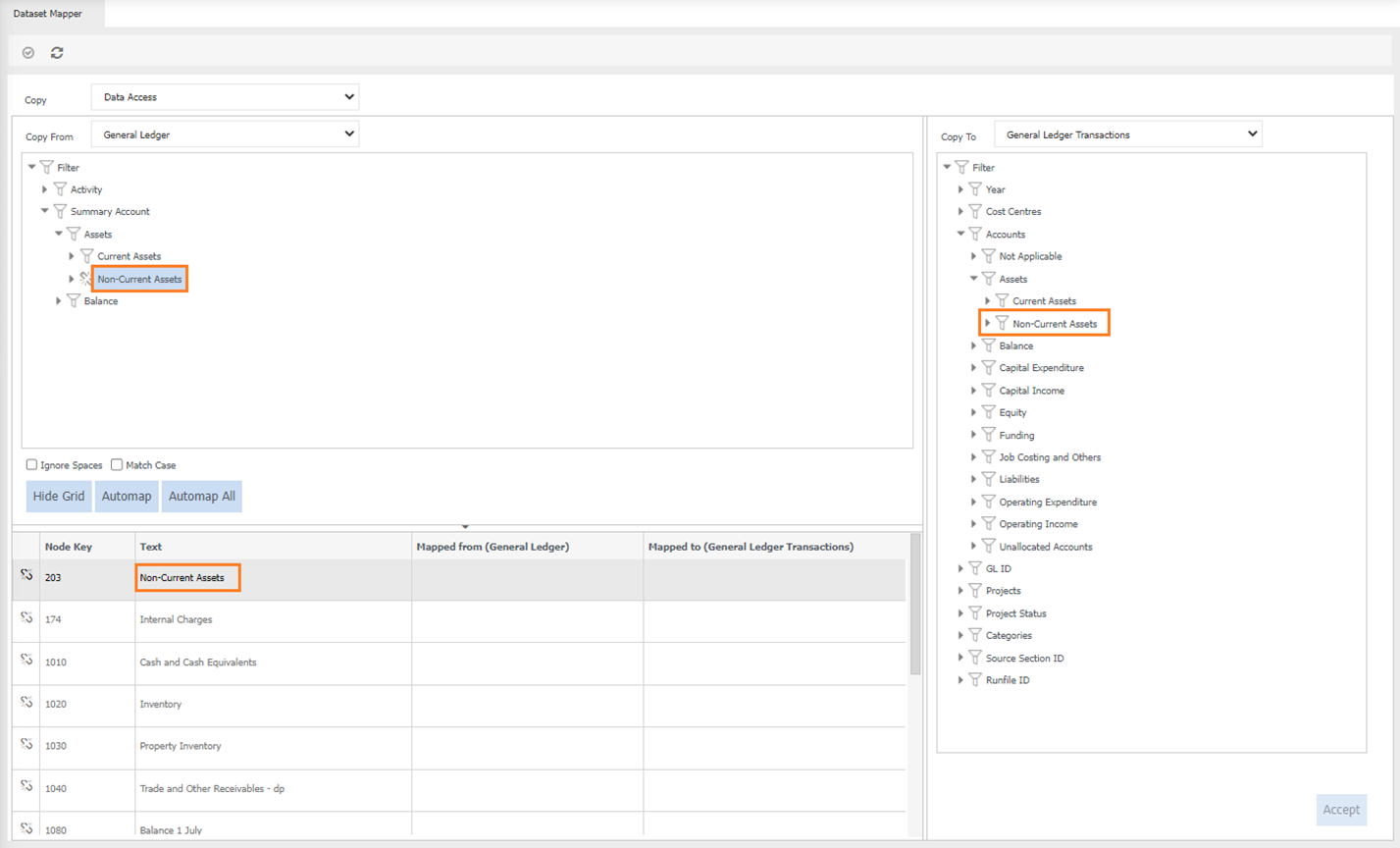
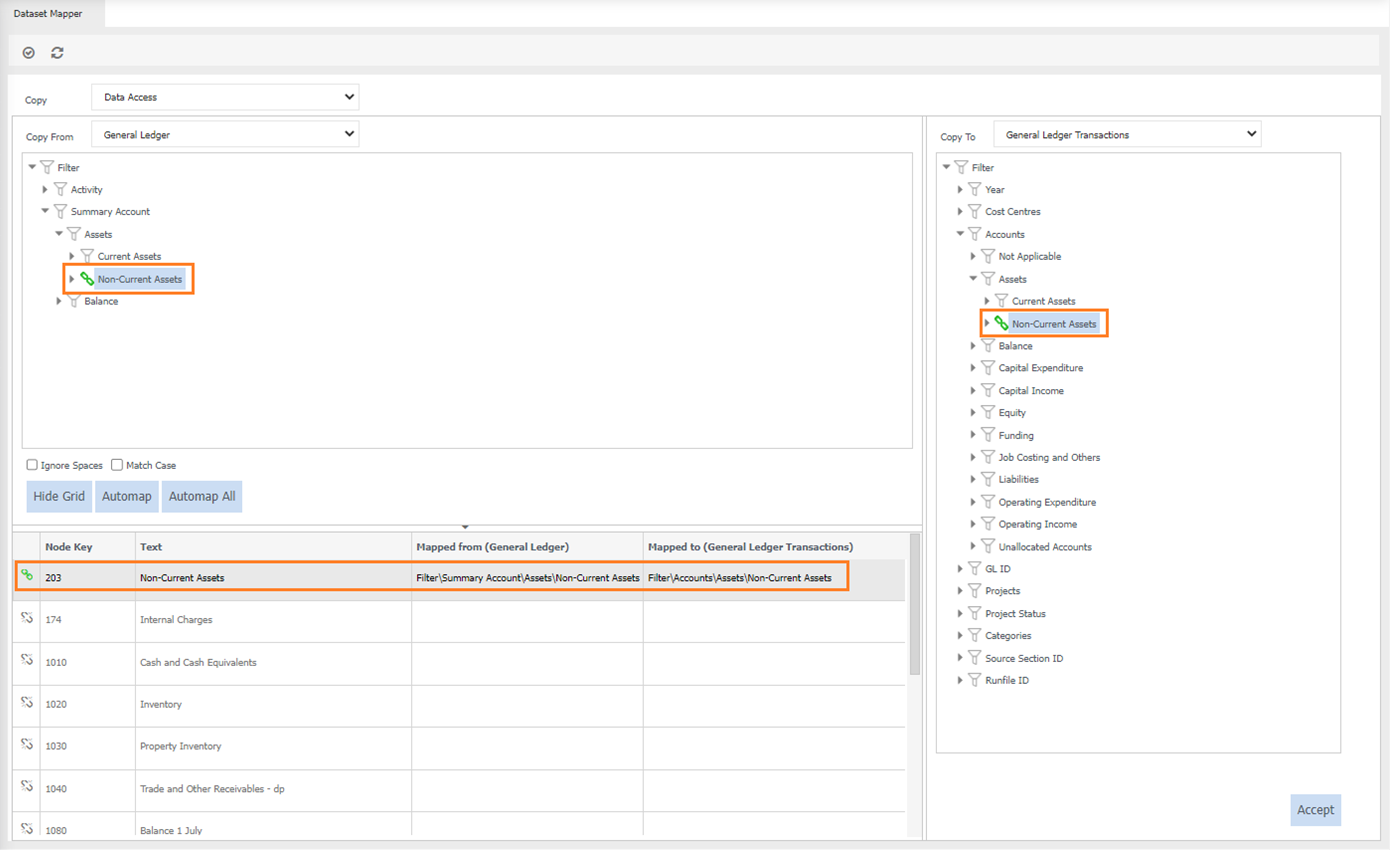
- Select the first entry, it will display where it exists in the structure for the 'Copy From' dataset. For example, Non-Current Assets.
-
On the right side, navigate to the same named filter and click on the name, for example Non-Current Assets
-
A green link will display to indicate that match is made. The grid view will also indicate that view
-
Click
 or
or