Reporting Platform / Transactions
Configure transactions to return the appropriate transactions for display in the Transaction window.
Field attributes can also be configured controlling the display and location characteristics of each field.
Each or all users can be updated as required.
Screen Overview
 save changes.
 refresh screen.
 create transaction.
 delete transaction.
Parameters
| Column Heading | Description |
|---|---|
| Connection ID | From the drop-down list select the Connection ID that is pointing to the database that contains transactions. |
| Database Type | Select a valid database type that the transaction data is in. |
| From Clause | Enter a valid SQL syntax to form the From portion of the SQL statement. |
| Where Clause | Enter a valid SQL syntax to form the Where portion of the SQL statement. The keyword TRANSKEY is required to restrict the selection of transactions to the posting string that was drilled into. The keyword TRANSPERIOD is required to restrict the selection of transactions to either transactions for just the current time series period or all transactions up to and including the current time series period. |
| Database Name | Enter the name of the database, if required. |
| Trigger Dataset Field | If required transactions can be triggered from a DataSet Field and if this function is to be used select a DataSet Field from the drop-down list. |
| Zoom To Enabled | Defaults to NO. Select YES if transactions are to be displayed if a user uses the Zoom To function in the Data Browser window. |
| Secondary Transaction Drill | Defaults to NO. Select YES if a secondary transaction name has been set up to be triggered from this transaction name in the Transaction window. |
| File Link Field | This function is available where source documents associated with a transaction can be viewed in the Transaction window via a hyperlink. From the drop-down list, select the transaction dataset field that is the source document name. |
| File Link Location Field | From the drop-down list, select the transaction dataset field that is the source document location. |
| Transaction Report RTF Signature | If you create text in word pad, you can copy and paste this here to add a Rich Text Format signature at the bottom on an Active Report. |
| Transaction Key | This will override the dataset parameter called Transaction Key for the relevant transaction name. |
| Navigte to URL | This is for Computron and if set to YES it will drill to the transaction G2 display |
| Budgets | This function allows the Transaction Name to be triggered from the Budget Entry window. Select the relevant Budget Names that are to have this Transaction Name available by changing the option to TRUE or Select All to have this Transaction Name available for all Budget Names. |
Right Click Menu Items
Cell Editor - this will bring up another window allowing you to enter, edit and view long text.
Fields
| Column Heading | Description |
|---|---|
| Field Name | Enter a descriptive for each field. |
| Field Construction | Enter the field name contained within any of the tables in the From Clause. |
| Display on Grid | Tick the box if you want this field to be included on the Transaction window. |
| Format | Enter a valid number format string to format the field on the Transaction window. For example, ##,##0;(##,##0) for negatives in brackets. |
| Alignment | Select an alignment for this Transaction window field. |
| Total Column | Tick the box if you want this field to have a total in the Grand Total row on the Transaction window. If it is a text based column then do not tick this. |
| Trigger Column | If secondary transactions are being used enter the column that is to trigger off the secondary transactions. |
| Key Column | Tick the field if the transaction drill key for the secondary drill is needed. |
| Period Column | Tick the field if it is to be used to filter transaction data when you select Current Period in Periodicity in Budgeting. |
Right click Menu Items
Cell Editor - this will bring up another window allowing you to enter, edit and view long text.
Insert Field - create/insert a new field.
Copy Field - copy and existing field.
Remove Field - delete a field.
Create Transaction
-
Click
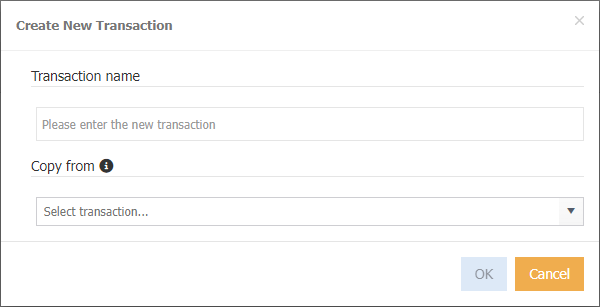
The below screen will display
-
Enter a transaction name.
- Click Ok.
- Enter Parmeter details (refer to the above).
- Create New Fields (refer to the above).
Copying existing transactions
-
Click
-
Enter a transaction name.
- Select the transaction that you wish to copy from.
- Click Ok.
- MAGIQ Performance will refresh and you will need to navigate to it.
Delete Transaction
- Select the Transaction.
- Click .
- Click Ok on the prompt of All associated transaction fields will also be deleted. CLick OK to delete.