Administration / Budget Settings
Globally set budget entry settings for users / roles.
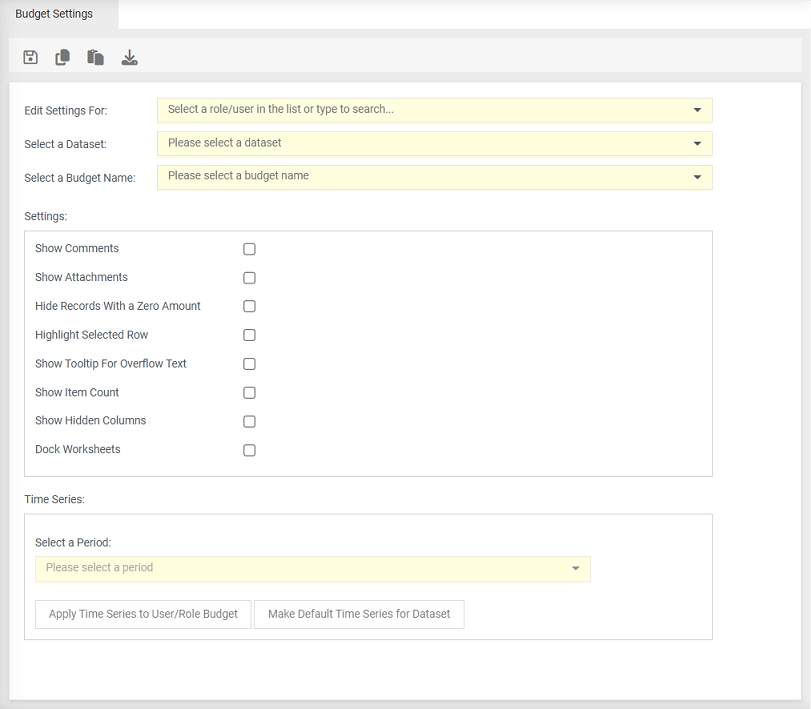
 save. Only saves the budget settings. As the Timseries section is saved by clicking "Apply Time series to user/role".
 copy settings which can be pasted to another user.
 paste settings.
 export all budget settings to Excel.
Edit Settings For select either a user or role.
Select a Dataset select the dataset.
Select a Budget Name select which budget the settings will be applied to.
Settings
Show Comments - Displays a  to indicate that comments are entered.
Show Attachments - Displays a  to indicate that an attachment exists.
Hide Records with a Zero Amount - Tick to hide any rows that have zeros in every column.
Highlight Selection Row - Entire row is highlighted and a border is placed around it. The selected cell will have a blue border.
Show Tooltip For Overflow Text - Displays a tooltip for text that does not fit within the cell. For example, a budget comment.
Show Item Count - Display the total row count in the Description column header.
Show hidden columns - Display columns that have been marked as hidden in control centre.
Dock Worksheets - Worksheets display under budget entry.
Time Series
Select a Year/Period - Choose which time series will be applied to the users budget.
Apply Time Series to user/role - applies the selected timeseries to any existing budget screens (for the specified user/role) to use the specified year.
Make Default Time Series - updates the default time series that is used when a new budget screen is created (i.e. when a user opens a budget for the very first time) - this does not affect existing budget screens.
When a user first opens a budget entry screen, the "default" time series is then applied. If 'Restore Default Screen' is used, the default time series is applied.