Budget Names / Budget Fields
Selecting the relevant budget name displays a full list of the fields.
 save changes.
 refresh screen.
 export fields to excel.
 import fields from excel.
All budgets have the following configuration elements:
| Column Heading | Description |
|---|---|
| Budget Field | Select any of the Dataset Fields from the drop-down list. |
| Editable | Tick if you require this column to be changed by Budgeting Users. |
| Updatable | Tick if this value is to be written back to the budgets table. For example PB_BUDGETS |
| Hidden | Tick the box if you wish to hide the column. |
| Begin Collapsed Group | Tick the box if this column is to signify the start of a group of columns in the Budget Entry window. |
| Collapsed Item | Tick the box if this column is to be part of a group of columns in the Budget Entry window. |
| Group Name | Group consecutive fields with a group name. The group name will display above the column headers. |
| Target Budget Total | Tick if the Target Budget Field represents the total target budget amount. |
| Target Budget Field | Select the Dataset field that is to be included as a target budget field. |
| Exceed Budget | Set to YES if you wish the budget amount entered to exceed the target amount. Otherwise set to NO |
| Load Field Separately | If you wish to display two different years' data in the Budget Entry window and they contain text in the field then tick the dataset field that is the bringing data from a previous year. For example, Next Year's Budget Comment and Previous Year's Budget Comment. |
| Include In Budget Save Check | Tick this if the dataset field being displayed in the Budget entry window is a parameter that is to change each year. If this is not ticked you may over write existing budgets. For example, Budget Year ID. If this is ticked you must enter syntax in the Budget Save Check Syntax below. |
| Budget Save Check Syntax | Enter the syntax that to ensure that existing budgets are not overwritten. For example, YearID = '0708'. Note: DataSet Variables can be used here. |
| Sub module link | Select the field created in the dataset. Works in conjunction with the field construction of dataset fields |
| Sub module link field | Select the field that will have the link on your budget entry screen. |
| Exclude from Budget Export | Tick which fields you do not want to export when exporting via the modeller. |
| Fixed Columns | Tick which fields you may want to be frozen on the Budget Entry window. |
| Allow Filter | Tick if you wish to apply a filter for this field in the Budget Entry window. |
| Mandatory Entry | Tick if you want the system to force users to enter data into this field. |
| Fill Down Layer | Tick if you want to enter a number at a multi-layer and have the number flow down to all layers within that multi-layer. |
| Budget Upload | |
| Period Ref | |
| Formula | Enter a formula that may be used in the calculation of the field. For example: YTD AUGUST would be [Next July Budget] + [Next August Budget]. Functions included are formulas to calculate %OF and %VAR. These functions should be used when a data entry column is contained in the % formula as it needs to dynamically recalculate after edit. |
Right click Menu Items
Cell Editor - this will bring up another window allowing you to enter, edit and view long text.
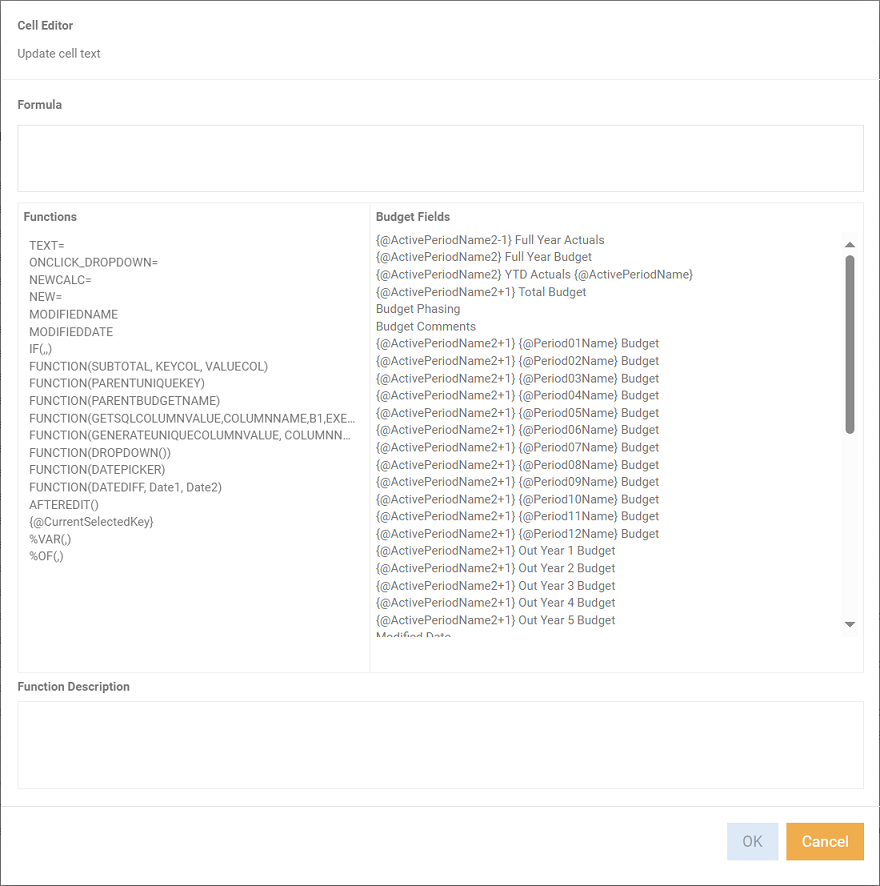
To create a formula:
- Double click the function.
- Place your cursor in the formula where you want the budget field name to be entered
- Double click the budget field name.
Insert - Create a new field.
Copy - Copy an existing field.
Remove - Delete a field.
Import from Excel - Import all fields from excel.
Export to Excel - Export all fields to excel.
Apply a Group Name
Applying a group name to consecutive fields groups the fields together. This shows on the budget data entry screen to easily identify how they are related.
-
For every field, enter a group name, for example 'Phasing'.
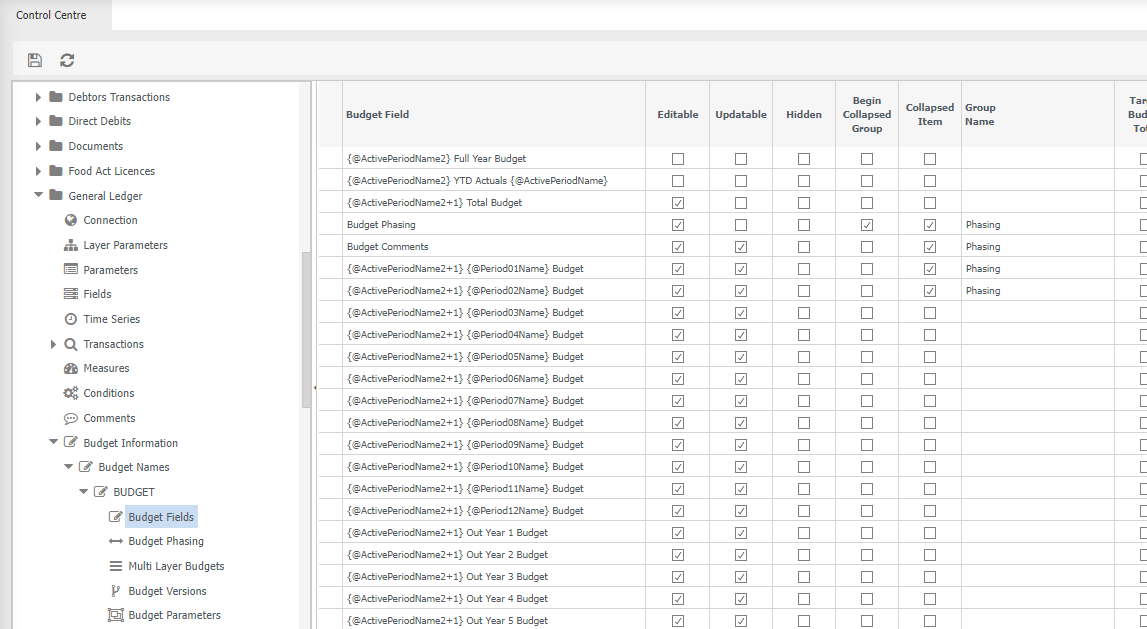
The result in the data entry is

NOTE: Entering a group name on items that have 'Collapsed Item' ticked. The items will be expanded to show the group name.
Round Function
Note
The round function is a final step similar to subtotal so can not be used inside other functions currently.
Rounds an individual budget field or combinations with mathematical operations. Syntax is
The syntax is: ROUND(VALUE, ROUNDTONEAREST, ROUNDDIRECTION)
VALUE - what you want to round. That could be another budget field "[Budget Field Name]" or a combination of multiple fields with some mathematical operation "[Budget Field Name 1] + [Budget Field Name 2] + 30"
ROUNDTONEAREST - an integer input of powers of 10 (1, 10, 100, 1000, 10000, 100000, 1000000, 10000000, 100000000) from 1 to 100 million which the round function can round towards.
ROUNDDIRECTION - an optional parameter that can either be "UP" or "DOWN" which indicates which way the rounding function should round to "ROUNDTONEAREST". If this is left blank it will round to the nearest whole step of "ROUNDTONEAREST"
For example, to round to the nearest 100
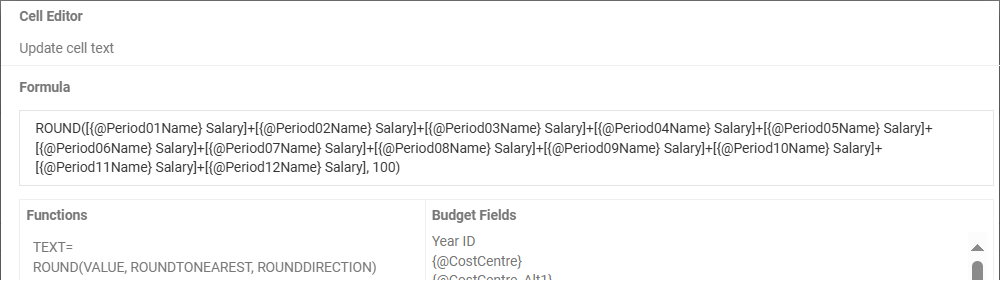
ROUND([{@Period01Name} Salary]+[{@Period02Name} Salary]+[{@Period03Name} Salary]+[{@Period04Name} Salary]+[{@Period05Name} Salary]+[{@Period06Name} Salary]+[{@Period07Name} Salary]+[{@Period08Name} Salary]+[{@Period09Name} Salary]+[{@Period10Name} Salary]+[{@Period11Name} Salary]+[{@Period12Name} Salary], 100)